

Microsoft 365 provides baseline email protections through Exchange Online Protection, plus layered Defender for Office 365 features on top. Those defaults block a lot of junk and known malware, but they don’t replace email authentication or tenant tuning. If you want real coverage, you need to turn on preset security policies, configure SPF, DKIM, and DMARC, and connect your monitoring to Defender XDR or a SIEM. Skip that work and you’re running on autopilot against attackers who aren’t.
TL;DR:
- Most tenants only rely on baseline Exchange Online Protection, which is insufficient without configuring SPF, DKIM, DMARC, and custom security policies.
- Features like Safe Links, Safe Attachments, and ZAP actively test or remove malicious content, but require proper setup and tuning to be effective.
- High-value accounts should have strict policies and privileged access protected by multi-factor authentication methods like FIDO2 keys or Windows Hello.
- Regular monitoring through Threat Explorer, SIEM integration, and incident response planning is essential, as native protections alone do not catch all sophisticated or nested attacks.
- External help, such as managed security services, becomes necessary when alert volume grows or internal staffing cannot sustain continuous threat management.
Table of Contents
- Understanding Microsoft 365 Email Security: The Protection Ladder
- How Safe Links, Safe Attachments, and Anti-Phishing Actually Work
- Configuring SPF, DKIM, DMARC, and Preset Policies Correctly
- Where to Hunt: Monitoring, Detection, and Response
- The Gaps Native Protection Doesn’t Close
- A 10-Step Hardening Checklist for This Week
- Why Configuration Alone Isn’t the Finish Line
- Get a Tenant Review from Total Cyber
- Sources
Understanding Microsoft 365 Email Security: The Protection Ladder
Think of Microsoft 365 email security as a ladder with three rungs, and most tenants only stand on the bottom one.
Every cloud mailbox, regardless of subscription tier, comes with built-in security features through Exchange Online Protection: anti-spam filtering, anti-malware scanning, basic anti-phishing checks for spoofed senders, quarantine handling, and zero-hour auto purge. This is your floor, not your ceiling.
Defender for Office 365 Plan 1 adds Safe Links, Safe Attachments, impersonation protection, and real-time detections. As of July 1, 2026, some of these Plan 1 capabilities are included in certain business SKUs, so it’s worth checking your exact tenant licensing rather than assuming what you had last year still applies.
Plan 2 is where security operations teams actually live: advanced hunting, Automated Investigation and Response, attack simulation training, Threat Explorer, and native integration with Microsoft Defender XDR. If your organization has any dedicated security staff, Plan 2 is where the ladder gets useful for them.
Pro Tip: Before assuming you’re missing a feature, check your service description page. Microsoft has quietly moved capabilities between SKUs more than once, and your Plan 1 today might already include something you thought required an upgrade.
How Safe Links, Safe Attachments, and Anti-Phishing Actually Work
These features don’t just filter, they actively test.
Safe Links rewrites URLs at time of click and checks the destination against Microsoft’s threat intelligence in real time, rather than relying only on a one-time scan at delivery. Preset security profiles change how aggressively links get rewritten and which domains get allowed through without a rewrite.
Safe Attachments detonates suspicious files in an isolated sandbox before delivery, and that detonation extends beyond mail into SharePoint, OneDrive, and Teams file shares. Anti-phishing protection layers spoof intelligence, mailbox intelligence (which learns a user’s normal contacts), and impersonation detection tuned by adjustable phishing thresholds.
Zero-hour auto purge, or ZAP, is the feature people forget until it saves them: it retroactively pulls messages out of inboxes after they’ve already been delivered, once new threat intelligence identifies them as malicious.
A few operational notes worth knowing:
- Safe Links protection now extends into Teams chats and channels, not just email.
- ZAP works on spam, phishing, and malware, but the removal window depends on how fast Microsoft’s intelligence catches the threat.
- Impersonation protection covers both domain impersonation and user impersonation, and both need separate tuning.
- Microsoft Threat Intelligence reported roughly 7.6 billion email-based phishing threats in the second quarter of 2026, alongside sharp growth in Teams-based phishing and QR code phishing, both of which push past traditional link-scanning.
Configuring SPF, DKIM, DMARC, and Preset Policies Correctly
Email authentication isn’t optional infrastructure. It’s the prerequisite everything else depends on.
Set these up in order, because each one builds on the last:
- SPF declares which servers are allowed to send mail for your domain.
- DKIM signs outgoing mail so receivers can verify it wasn’t altered in transit.
- DMARC ties SPF and DKIM together and tells receiving servers what to do with mail that fails, plus where to send reports.
- Start DMARC in monitoring mode, review the reports, then move to
p=quarantineorp=rejectonce you’re confident legitimate mail won’t get caught. - Enable Standard preset security policies for the general user population. Standard is Microsoft’s own recommendation for most organizations, and Microsoft updates it automatically as threats evolve.
- Reserve Strict policies for high-value accounts: executives, finance, HR, and anyone with wire authority. Blanket Strict deployment tends to generate false positives that train users to distrust security alerts.
- Run the Configuration Analyzer, also called ORCA, before making sweeping policy changes, and capture a snapshot of your current settings first.
Pro Tip: Set Outlook’s client-side junk filter to “No automatic filtering.” When users leave the default client filter running alongside your tenant policy, you get conflicting decisions on the same message, and that inconsistency is exactly what attackers rely on.
Document every exception you grant, and treat the Tenant Allow/Block List with caution. It’s meant for narrow, temporary use, not as a shortcut around a policy that’s generating too many complaints.
Where to Hunt: Monitoring, Detection, and Response
Configuration is only half the job. The other half is watching what actually gets through.
Threat Explorer gives you campaign-level visibility, letting you see patterns across mailboxes instead of chasing one complaint at a time, and it lets you purge malicious messages tenant-wide once you’ve confirmed the threat. Automated Investigation and Response, available in Plan 2, can triage and contain many incidents without waiting on a human to click through every alert.
Email telemetry means far more when it’s connected to identity and endpoint signals. Feeding alerts into Defender XDR or a SIEM lets you correlate a suspicious sign-in with a phishing click from the same user, which is often the difference between catching a breach in hours versus weeks.
Watch specifically for:
- Sending patterns that spike outside normal business hours or geography.
- Nested EML or ICS calendar attachments carrying anomalies simple filters miss.
- Redirect chains that bounce through several public file-hosting services before landing on a credential page.
- Template tokens like
{{DATE}}left unrendered, a sign of mass-produced phishing kits.
Use the submissions workflow to feed confirmed threats back into your Tenant Allow/Block List, but only after review.
The Gaps Native Protection Doesn’t Close
Built-in protection is a baseline. It is not a finish line.
Calendar and ICS invitations can slip past basic checks because many filters weren’t built to inspect nested content the way they inspect a standard email body. The same applies to nested EML files, where a malicious message is wrapped inside another file to dodge simple scanning. Both need explicit inspection rules, not just default trust.

Teams-based vishing and collaboration phishing are growing fast enough that Microsoft’s own threat intelligence flags them as a rising trend defenders need to address outside the inbox. If your phishing simulation program only tests email, you’re training people to spot half the threat.
A few more places native tools commonly fall short:
- Allow-listing convenience often outweighs security discipline. Prefer temporary, submission-based allows over permanent domain exceptions.
- Privileged accounts need phishing-resistant MFA, such as FIDO2 keys, Windows Hello, or Microsoft Authenticator, not just any second factor.
- Global Administrator roles should be reserved for emergency use, with day-to-day work handled through least-privilege role assignments.
- Repeated allow-list abuse from the same sender or domain is a signal worth escalating, not quietly renewing.
A 10-Step Hardening Checklist for This Week
Most of this can be done without a change window. None of it requires new licensing if you already have Plan 1 or Plan 2.
- Enable Standard preset security policy tenant-wide.
- Assign Strict policy to your small list of high-value accounts.
- Verify SPF, DKIM, and DMARC for every domain you own, and turn on DMARC reporting.
- Confirm Safe Links and Safe Attachments are active tenant-wide, and review any exceptions on the books.
- Confirm ZAP is enabled, and set up the submissions and Tenant Allow/Block workflow.
- Connect email detections to Defender XDR or your SIEM, and enable AIR if you’re on Plan 2.
- Add Teams-based scenarios to your phishing simulation training.
- Audit Global Administrator assignments and cut anyone who doesn’t need standing access.
- Run ORCA and remediate the highest-impact findings first.
- Search mail flow for nested EML and calendar anomalies, and purge confirmed matches.
Pro Tip: Pair this checklist with a written incident response playbook specific to email and Teams. A checklist tells you what to configure; a playbook tells your team what to do at 2 a.m. when the checklist wasn’t enough.
Why Configuration Alone Isn’t the Finish Line
Here’s the uncomfortable part most vendor documentation skips: enabling every setting on this list gets you to a solid baseline, not to safety. Preset policies update automatically, but the threat landscape they’re reacting to moves faster than most internal IT teams can track alongside their regular workload. Someone has to actually read the alerts, tune the exceptions, and rerun ORCA after every major change, and that someone usually has four other priorities competing for the same hour.
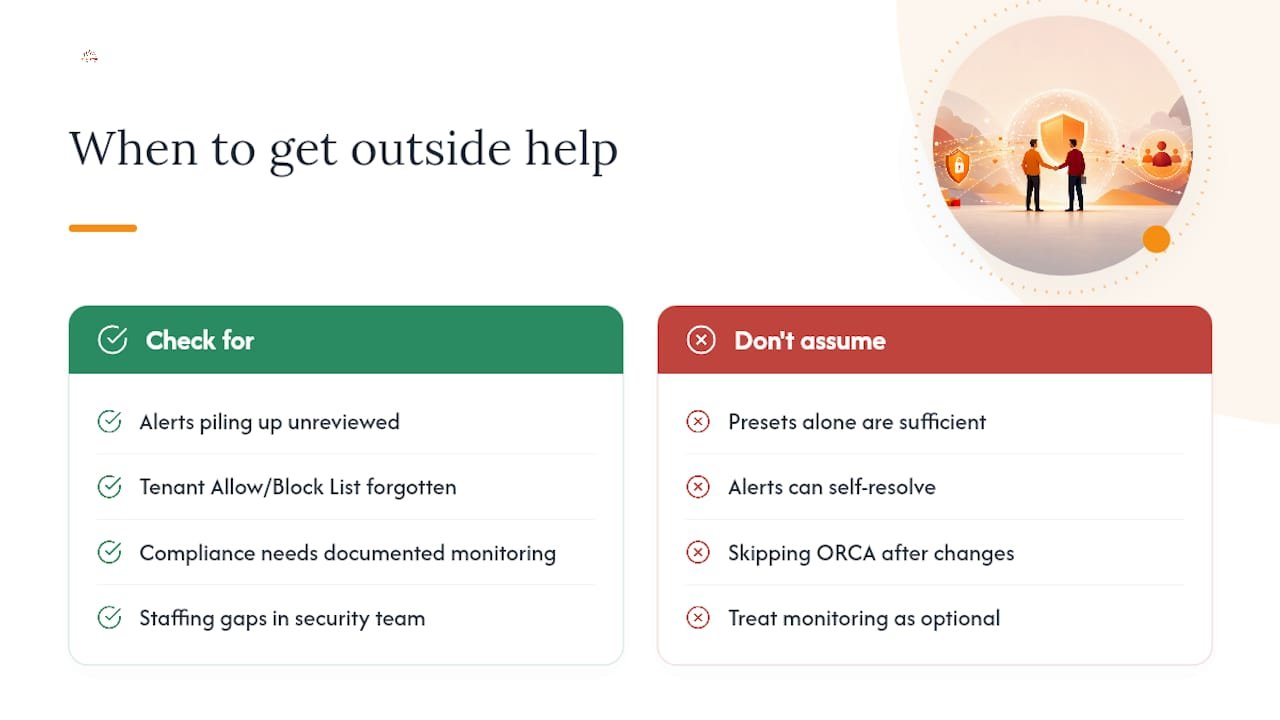
The honest signal that you need outside help isn’t a breach. It’s the pattern before one: alerts piling up unreviewed, a Tenant Allow/Block List nobody remembers building, or a compliance obligation (HIPAA, CMMC, or similar) that requires documented monitoring you don’t currently have. Staffing gaps and 24/7 coverage needs are the two most common triggers we see, and neither one means your IT team is failing. It means the workload has outgrown what a lean internal team can sustain alone, which is exactly the gap managed security services exist to fill.
If any of that sounds familiar, it’s worth a tenant review before it becomes a bigger conversation.
— Alden
Get a Tenant Review from Total Cyber
Configuring preset policies and DMARC gets you a strong baseline, but a baseline still leaves someone responsible for watching alerts, tuning exceptions, and testing your response plan every month. That’s the gap Total Cyber closes. As a veteran-owned managed security provider, Total Cyber runs managed cybersecurity services built for exactly the workload this article just walked through: continuous tuning, threat hunting, and incident response for Microsoft 365 environments, alongside compliance consulting for frameworks like HIPAA, CMMC, and CJIS.
If your team is stretched thin, facing a compliance deadline, or fielding more targeted phishing attempts than you can triage manually, that’s the moment to stop patching alone. Total Cyber also delivers cyber awareness training so your staff becomes part of the defense, not just a target for the next campaign. Start with a tenant review: fill out the managed services form and get a direct assessment of where your Microsoft 365 configuration stands today.
Sources
Every recommendation above traces back to Microsoft’s own deployment guidance, starting with the Defender for Office 365 deployment guide and Microsoft’s recommended threat policy settings. For broader incident context and reporting channels beyond your own tenant, CISA maintains resources specific to Microsoft 365 and Exchange Online environments, and the FBI’s IC3 tracks business email compromise trends worth reviewing alongside your own incident logs.
- Built-in security features for all cloud mailboxes
- Email threat landscape: Q2 2026 trends and insights