

Conditional access policies are if-then rules that check who’s signing in, from what device, and from where, then grant, block, or add friction to that access in real time. The immediate payoff for administrators: instead of a flat “logged in or not” gate, you get adaptive enforcement, like requiring MFA only when a sign-in looks risky, or blocking legacy authentication outright. Most Conditional Access policies operate with Microsoft Entra ID P1 licenses, while risk-based policies require P2; it is recommended to test all policies in report-only mode before enforcement.
TL;DR:
- Conditional access policies require P1 licenses unless implementing risk-based controls, which need P2 licenses, making testing in report-only mode essential.
- Policies should be carefully layered, with AND logic applying multiple controls simultaneously, so broad policies can unexpectedly lock out users if not properly configured.
- Main signals that optimize policy effectiveness include user and sign-in risk (P2 only), device compliance, and IP-based location, while country-level location offers slower enforcement.
- Implementation progress should follow a phased plan over 30, 60, and 90 days, including inventory, baseline templates, pilot testing, and tying policies into broader security workflows.
- Common issues like accidental lockouts, legacy app failures, or cross-tenant misconfigurations are mitigated by thorough testing, exclusions, and monitoring sign-in logs regularly.
Table of Contents
- How Conditional Access Fits Into Zero Trust
- What Are the Building Blocks of a Policy?
- Which Signals Matter Most for Conditional Access?
- What Do Real Conditional Access Policies Look Like?
- How Do You Roll Out Conditional Access Safely?
- What’s a 30/60/90-Day Conditional Access Checklist?
- Common Deployment Issues and How to Fix Them
- Security and Compliance Considerations in Policy Design
- Connecting Conditional Access to Your Broader Security Stack
- How Monitoring Keeps Conditional Access Effective Over Time
- Industry-Specific Conditional Access Examples
- Why Managed Rollout Beats DIY for Most SMBs
- Get Conditional Access Right the First Time
- Where to Go Deeper
- Sources
- FAQ
How Conditional Access Fits Into Zero Trust
Conditional access is the enforcement layer of a Zero Trust identity strategy. Zero Trust assumes no user or device is trusted by default, even inside the corporate network, and conditional access is the mechanism that actually checks credentials against that assumption every time someone tries to reach a resource.
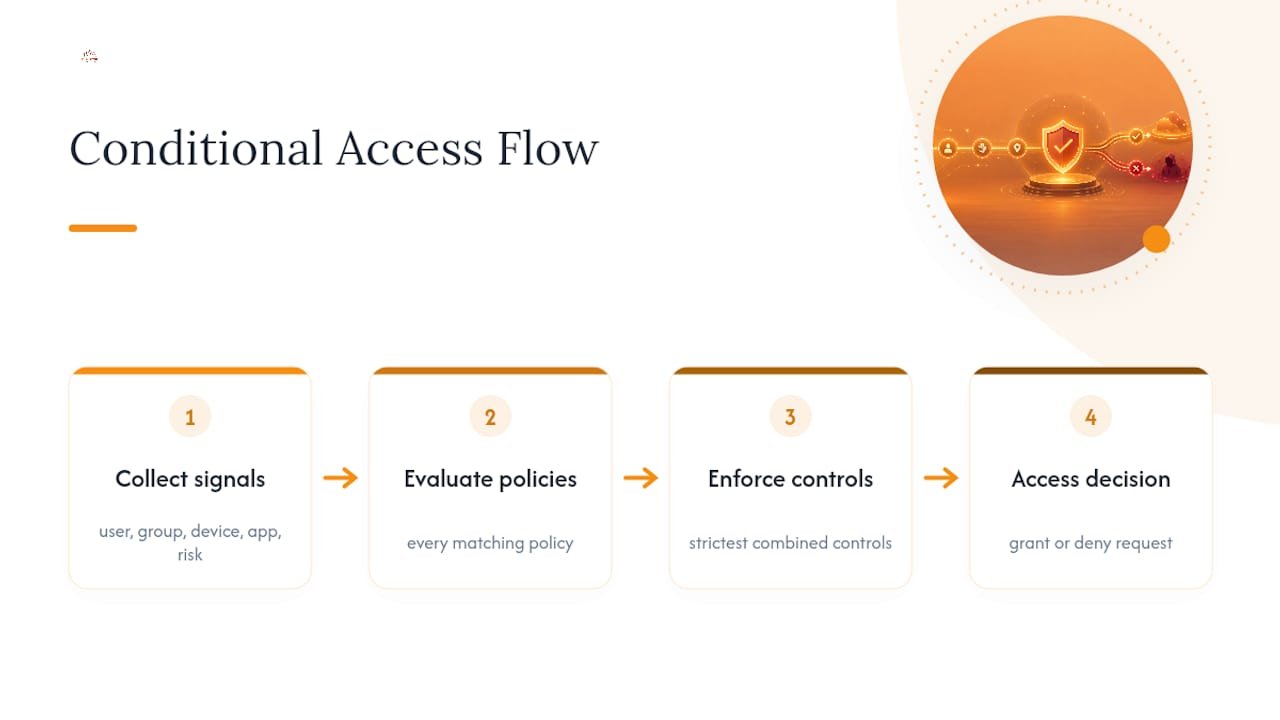
The engine works in two phases. First, Entra ID collects session details: who’s signing in, what group they belong to, what device they’re on, what app they want, and what the risk signals say. Second, it evaluates every policy that matches those conditions and enforces the strictest combination of controls. Nothing is skipped just because one policy already passed.
This is where Continuous Access Evaluation comes in. CAE lets Entra ID react to certain events, like a disabled account or a changed password, almost immediately, instead of waiting for a token to expire naturally. That said, CAE has real limits. Location-based enforcement only works reliably with IP-based named locations; country-level and trusted-IP conditions don’t get the same near-real-time treatment. If you’re planning session controls around location, know that gap before you rely on it.
Conditional access doesn’t replace network firewalls or endpoint protection. It sits alongside them as the identity checkpoint, deciding whether a request even gets a chance to reach the resource behind those other layers.
What Are the Building Blocks of a Policy?
Every conditional access policy is built from four pieces, and admins who skip past any one of them tend to build rules that misfire in production.
Assignments define who the policy applies to. You can include or exclude users, groups, directory roles, and workload identities. This is also where your emergency access accounts, sometimes called break-glass accounts, get explicitly excluded so a misconfigured policy can’t lock every admin out at once.
Target resources define what the policy protects. That’s usually cloud apps, but it also covers user actions like registering security info, authentication contexts for step-up scenarios, and filters that scope a policy to specific apps rather than “all cloud apps.”
Conditions are the signals the policy checks: device platform, location, client app type, sign-in risk, user risk, and authentication flow.
Access controls are what happens when conditions match:
- Grant controls: require MFA, require a compliant device, require an approved client app, or require multiple controls together
- Block controls: deny access outright, typically for legacy authentication or high-risk sign-ins
- Session controls: limit sign-in frequency, enforce app-enforced restrictions, or route through Microsoft Defender for Cloud Apps for continuous monitoring
Get the assignments and target resources wrong and the policy either applies too broadly or misses the app you actually meant to protect.
Which Signals Matter Most for Conditional Access?
Not every signal deserves equal weight in your policy design, and some carry licensing strings attached.
User risk and sign-in risk come from Identity Protection and require Entra ID P2. Sign-in risk flags things like impossible travel or anonymous IP addresses at the moment of authentication. User risk looks at patterns over time, like leaked credentials found in a breach dump. Standard conditional access policies run on P1, but risk-based policies specifically need P2, so check your licensing before you design around risk signals.
Device signals rely on Intune compliance status or hybrid Azure AD join. A device either meets your compliance baseline or it doesn’t, and that binary makes device-based policies some of the most reliable rules you’ll write.
Location signals split into two tiers. IP-based named locations work well with Continuous Access Evaluation and enforce close to real time. Country-level location conditions are useful for broad geofencing but don’t get the same near-instant enforcement.
Client app type separates modern authentication from legacy protocols like POP3, IMAP, and older Exchange ActiveSync clients that can’t perform MFA at all.
A quick reality check worth building into your planning: CISA’s guidance on Conditional Access baselines specifically flags legacy authentication as one of the highest-value blocks you can deploy, precisely because those protocols bypass modern MFA prompts entirely.
- User/sign-in risk: needs P2, best for catching account compromise
- Device compliance: P1-friendly, high reliability
- IP-based location: CAE-aware, tighter enforcement
- Country-level location: broader, slower to enforce
- Client app type: essential for catching legacy auth attempts
What Do Real Conditional Access Policies Look Like?
Here are five policies worth building early, in roughly the order most organizations deploy them:
- Require MFA for all admins. Target directory roles like Global Administrator and Security Administrator, require MFA on every sign-in, no exceptions.
- Block legacy authentication. Target the legacy authentication client app condition, apply to all users, set the control to block. This alone closes a door that phishing kits exploit constantly.
- Require compliant devices for sensitive apps. Target your finance or HR platforms, require Intune-compliant devices, grant access only when that condition is met.
- Block high-risk sign-ins. Target all users, condition on sign-in risk set to high, block access. Requires P2.
- Require phishing-resistant MFA for privileged roles. Target admin roles, require authentication strength set to phishing-resistant (FIDO2 or certificate-based), which CISA specifically recommends for privileged accounts.
Here’s the part that trips up a lot of new admins: when multiple policies match a sign-in, Entra ID applies AND logic. Every matching policy’s controls must be satisfied, not just one. Write a broad “require MFA for all users” policy alongside a narrow “require compliant device for finance app” policy, and a finance user hits both requirements at once.
Watch for three specific gotchas: admin lockout from an overly broad block policy, unexpected effects on guest users in cross-tenant scenarios, and apps that don’t support modern authentication controls at all, which can silently break access instead of prompting for MFA.
Pro Tip: Build your block-legacy-auth policy in report-only mode first and let it run for at least a week. You’ll often find a forgotten service account or scanner still using basic auth, and you want to catch that before it’s a hard block.
How Do You Roll Out Conditional Access Safely?
Start with Microsoft’s built-in templates rather than building from a blank policy. Templates are grouped by intent, including Zero Trust, Protect Administrators, Remote Work, and Secure Foundation, and they encode Microsoft’s own recommended defaults so you’re not guessing at baseline settings.
Before any policy touches production, run it in report-only mode and check it against the What If tool, which simulates a specific sign-in against your policy set and shows exactly which controls would fire.
Phased rollouts paired with active user communication cut down on help-desk friction significantly, and report-only mode combined with the What If tool functions as the operational safety net during that transition, according to Microsoft’s own rollout planning guidance.
A workable rollout sequence looks like this:
- Baseline: deploy templates in report-only, confirm they match your intent
- Pilot: enable enforcement for IT and a small volunteer group first
- Staged enforcement: expand by department or app criticality, watching sign-in logs closely after each stage
- Adjust: refine named locations, exclusions, and risk thresholds based on what the logs actually show
On licensing: P1 covers the majority of policies, including device compliance and client app conditions. P2 is required the moment you touch risk-based conditions or want deeper Identity Protection integration.
What’s a 30/60/90-Day Conditional Access Checklist?
If you’re starting from nothing, here’s a practical pace that won’t overwhelm your help desk:
- Days 1 to 30: Inventory every app that touches Entra ID, enable Microsoft’s baseline templates in report-only mode, configure and secure your emergency access accounts, and set every new policy to report-only by default.
- Days 31 to 60: Expand your pilot group, validate that Continuous Access Evaluation and named locations behave as expected, then move key policies (MFA for admins, block legacy auth) from report-only into enforcement for your most critical apps.
- Days 61 to 90: Shift privileged roles to phishing-resistant MFA, and connect conditional access decisions into your broader vulnerability management and incident response workflow so a flagged risky sign-in actually triggers a response, not just a log entry.
This pace assumes a small IT team without a dedicated identity specialist. Tighter timelines are possible, but rushing the report-only phase is the single most common cause of an accidental lockout during rollout.
Common Deployment Issues and How to Fix Them
Most conditional access problems fall into a short list of repeat offenders.
Unexpected lockouts usually trace back to a block policy that’s broader than intended, or a break-glass account that wasn’t excluded before the policy went live. Always verify your emergency access accounts are excluded from every new policy before you flip it from report-only to enforced.
Legacy app breakage happens when an older application can’t handle modern authentication prompts at all. Instead of showing an MFA challenge, the app just fails silently. Check your sign-in logs for a spike in failures right after enabling a new policy, and look specifically at the app names involved.
Guest and cross-tenant confusion trips up organizations with a lot of B2B collaboration. A policy written for your own users may apply differently, or not at all, to guest accounts depending on how your cross-tenant access settings are configured. Test guest sign-ins separately; don’t assume your internal testing covers them.
Conflicting policy stacking produces access denials that look like a bug but are actually working as designed. Remember the AND logic: if a user matches three policies and one requires a compliant device they don’t have, they’re blocked, even if the other two policies had let them through.
Slow or missing enforcement on location-based rules almost always comes down to using country-level conditions instead of IP-based named locations, since only the latter gets near-real-time treatment under Continuous Access Evaluation.
When in doubt, pull the sign-in log for the affected user and read the “Conditional Access” tab directly. It shows every policy that was evaluated and why each one passed, failed, or didn’t apply.
Security and Compliance Considerations in Policy Design
Conditional access decisions carry compliance weight, not just security value. If your organization is working toward frameworks like HIPAA, NIST, or CMMC, your access control policies are usually one of the first things an auditor asks to see documented.
Design with an audit trail in mind from the start. Every policy should have a clear, written rationale: why it exists, what risk it addresses, and who owns it. A policy ownership register, where each rule is mapped to a specific owner and a review cadence, saves enormous time when a compliance assessor asks “why does this exclusion exist?” six months after you set it up and nobody remembers.
Emergency access accounts deserve their own security tier. Since they’re excluded from your enforcement policies by design, they need compensating controls: long, complex, physically stored credentials, and alerting on any sign-in attempt using them at all.
Data residency and sovereignty requirements can also shape your location conditions. If a regulation requires that certain data never be accessed from outside a specific region, a location-based block policy becomes a compliance control, not just a security preference, though remember the enforcement-speed caveat with country-level conditions.
Documentation matters as much as configuration here. An auditor doesn’t just want to see that a policy blocks legacy authentication; they want to see when it was enabled, who approved it, and what testing confirmed it worked as intended.
Connecting Conditional Access to Your Broader Security Stack
Conditional access works best as one piece of a connected system, not a standalone gate. On its own, it’s a strong front door. Paired with the right tools behind that door, it becomes part of a layered defense.
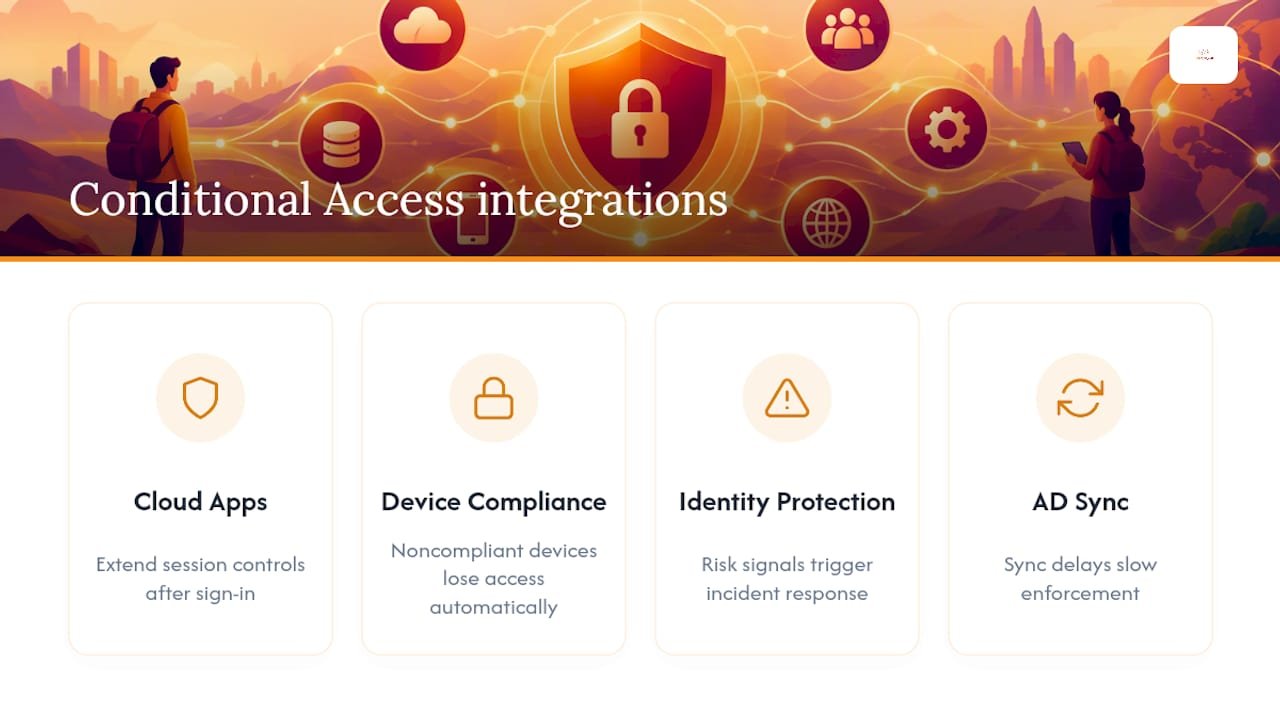
Microsoft Defender for Cloud Apps extends session controls beyond the initial sign-in, letting you monitor or restrict activity within an app after access is granted, like blocking downloads from an unmanaged device even after MFA succeeds.
Intune device compliance feeds directly into conditional access as a condition, which means your endpoint management and access control policies need to stay in sync. A device that falls out of compliance, whether from a missed update or a disabled security feature, should lose access automatically rather than waiting for a manual review. Reviewing your mobile device security posture alongside your conditional access rules keeps that link solid.
Identity Protection supplies the risk signals that P2 policies depend on, but it works better when paired with actual incident response. A flagged risky sign-in should trigger a documented process, not just sit in a dashboard.
For organizations running hybrid identity, on-premises Active Directory sync status affects how quickly device and user changes propagate into conditional access decisions. A delay in sync means a delay in enforcement, which matters if you’re relying on group membership changes to remove access quickly.
Third-party identity providers connecting through federation need separate testing, since conditional access behavior with federated accounts doesn’t always match what you’d expect from native Entra ID accounts.
How Monitoring Keeps Conditional Access Effective Over Time
A conditional access policy that worked perfectly at launch can quietly stop working as your organization changes. Monitoring is what catches that drift before it becomes an incident.
Sign-in logs are your primary feedback loop. Review them regularly, not just during rollout, looking specifically for policies that never trigger, which usually means the conditions are too narrow, or ones that trigger constantly, which might mean they’re too broad or catching something unintended.
Set a recurring review cadence, tied to the policy ownership register mentioned earlier, so every policy gets a second look on a schedule rather than only when something breaks. Quarterly reviews work well for most SMBs; monthly makes sense for high-risk industries or after a major infrastructure change.
Watch for named location drift. Office relocations, ISP changes, and new remote work arrangements all shift the IP ranges your organization actually uses, and a named location list that isn’t updated stops protecting what you think it protects.
Track exclusion lists closely. Exclusions tend to accumulate over time as one-off exceptions get added and never removed. An exclusion list that’s grown well past its original scope is often the first sign a policy needs a full redesign rather than another patch.
Finally, correlate conditional access signals with your broader security monitoring. A user who’s repeatedly triggering risk-based blocks deserves a look beyond just the access log.
Industry-Specific Conditional Access Examples
Finance. A regional credit union might require phishing-resistant MFA for anyone touching core banking systems, combined with a strict compliant-device requirement and a block on all access from outside approved named locations. High-risk sign-ins get blocked outright, no step-up option, because the potential fraud exposure outweighs the inconvenience.
Healthcare. A clinic managing electronic health records under HIPAA typically pairs device compliance requirements with session controls that limit sign-in frequency on shared workstations, since clinical staff often share devices across shifts. Legacy authentication gets blocked entirely, and access to the EHR platform specifically requires an approved, monitored client app rather than a generic browser session.
Education. A school district juggling student, faculty, and guest accounts often needs different policies per group. Faculty accounts might require MFA and compliant devices for access to grading systems, while student accounts get a lighter-touch policy focused mainly on blocking legacy authentication and flagging risky sign-ins, since device compliance is harder to enforce on personally owned student devices.
Each of these examples starts from the same baseline templates and layers industry-specific conditions on top, which is really the whole point of conditional access: one policy engine, tuned differently depending on what’s actually at risk.
Why Managed Rollout Beats DIY for Most SMBs
Conditional access looks simple on paper: a handful of grant and block controls. In practice, getting the sequencing right, testing thoroughly, and avoiding a lockout takes real hands-on experience. Some managed cybersecurity and IT services providers are built around exactly that kind of hands-on policy work, not just theoretical guidance.
Alden, who covers identity and access topics for Total Cyber Solutions, has seen the same rollout mistakes repeat across different organizations: skipped report-only testing, missing emergency access exclusions, and policies that conflict without anyone noticing until a department loses access mid-week.
If you want a second set of eyes on your rollout plan before you flip anything to enforced, schedule a consultation with Total Cyber Solutions. The call covers your current policy state, licensing gaps, and a realistic phased timeline.
— Alden
Get Conditional Access Right the First Time
Configuring conditional access correctly, testing it thoroughly, and keeping it tuned as your organization changes is ongoing work, not a one-time project. That’s exactly where a managed partner earns its keep.

Some managed service providers build security into every managed service, handled by senior cybersecurity professionals rather than IT generalists who treat identity as an afterthought. For businesses running Microsoft 365, that means Managed Cybersecurity Services that cover conditional access design, report-only testing, phased enforcement, and ongoing monitoring, all with transparent pricing and U.S.-based support instead of a black box you have to trust blindly.
If compliance is part of what’s driving your access control project, whether that’s HIPAA, NIST, or CMMC, policy compliance consulting ties your conditional access rules directly to the framework you’re being measured against, so the policies you build actually satisfy an auditor, not just a checklist you wrote yourself.
Ready to stop guessing and get a professional rollout plan? Fill out the consultation form and Total Cyber Solutions will walk through your current setup, your licensing, and a realistic timeline for getting conditional access enforced correctly.
Where to Go Deeper
Microsoft Learn’s Conditional Access documentation covers policy components and licensing in full detail. CISA’s baseline policy guidance explains recommended templates and testing practices for federal-aligned environments.
Sources
- Enable Microsoft Conditional Access Policy Templates (CM0114) – CISA
- Continuous Access Evaluation – Microsoft Learn
FAQ
What Is an Example of a Conditional Access Policy?
A common example blocks legacy authentication for all users while requiring multi-factor authentication for anyone in an administrative role. Another frequently deployed example requires a compliant, Intune-managed device before granting access to a finance or HR application.
Where Do I Find Conditional Access Policies?
Conditional access policies live in the Microsoft Entra admin center, under Protection, then Conditional Access. From there you can view existing policies, create new ones from Microsoft’s built-in templates, and run the What If tool against them.
What Is a Conditional Access Policy?
A conditional access policy is an if-then rule that Entra ID evaluates every time someone signs in, checking signals like device compliance, location, and risk level. If the conditions match, the policy enforces a control, such as requiring MFA, requiring a compliant device, or blocking access outright.
What License Do I Need for Conditional Access Policies?
Standard conditional access policies, including device compliance and legacy authentication blocks, require Entra ID P1. Risk-based policies that rely on Identity Protection’s user risk or sign-in risk signals require Entra ID P2.
Does Conditional Access Replace Multi-Factor Authentication?
No. Conditional access is the policy engine that decides when to require MFA, not a replacement for it. MFA is one of several grant controls conditional access can enforce, alongside device compliance and approved client app requirements.