

Start at the Microsoft Defender portal or the Microsoft 365 admin center to provision the service, assign Defender for Business licenses to your users while ensuring your user count fits within the supported range for this solution, then onboard devices with the local script for a quick win, or Intune for scale. Turn on the default security policies and run a detection test before you call it done.
TL;DR:
- Ensuring your user count fits within the supported range is crucial before onboarding devices and activating security policies to prevent licensing issues.
- Assigning the correct admin roles, especially Security Administrator and Security Reader, is essential to avoid permission conflicts or incomplete policy management.
- Onboarding should start with small batches using local scripts or GPO, especially for fewer devices, before scaling with Intune for larger deployments.
- Running a detection test within the first week and reviewing high-risk alerts helps confirm the deployment’s effectiveness and identifies immediate vulnerabilities.
- Managed service providers can streamline the entire process, including provisioning, onboarding, tuning, and ongoing monitoring, saving time and reducing troubleshooting in SMB environments.
Table of Contents
- How Do You Set Up Defender for Business?
- Who Should Get Licenses and Admin Roles?
- Which Onboarding Method Fits Your Environment?
- Which Security Policies Should You Enable First?
- How Does Defender for Business Fit MSP and Multi-Tenant Environments?
- What Should You Check in the First 30 to 90 Days?
- How Total Cyber Solutions Approaches Defender for Business for SMBs
- Get Defender for Business Running Without the Trial and Error
- Essential Microsoft Docs and Portals to Bookmark
- Sources
How Do You Set Up Defender for Business?
Getting Defender for Business protecting real devices comes down to three purchase paths, two main admin portals, and a handful of provisioning signals worth knowing before you click anything.
You can buy Defender for Business as a standalone subscription, get it bundled inside Microsoft 365 Business Premium, or run a trial through a Microsoft partner. Most small IT teams already using Microsoft 365 find Business Premium the simpler route since email, Teams, and endpoint security land under one license. Shops that only need endpoint protection often go standalone instead.
Provisioning itself happens in two places: the Defender portal and the Microsoft 365 admin center. Once a license is active, the tenant setup wizard appears in the Defender portal and walks you through initial configuration. According to Microsoft’s own setup guidance, provisioning and management both run through these two consoles, so bookmark them before you buy anything.
Before you commit budget, run through this checklist:
- Confirm your total user count fits within the supported range for Defender for Business, or plan for enterprise Defender plans instead.
- Decide if you need the server add-on license for Windows or Linux servers.
- Check that devices meet the minimum patch and OS requirements.
- Verify who on your team needs portal access before rollout day.
Who Should Get Licenses and Admin Roles?
License assignment happens in the Microsoft 365 admin center, under Users > Active Users, where you select each user and add the Defender for Business license. It takes minutes per user, but role assignment is where most SMB teams either overshoot or undershoot permissions.
- Assign Security Administrator to the one or two people who will configure policies, review alerts, and manage onboarding, since this role has full write access across the Defender portal.
- Assign Security Reader to managers or auditors who need visibility into incidents and reports without the ability to change settings.
- Avoid mixed licensing. Microsoft has confirmed there’s no supported experience when Defender for Business and enterprise Defender plans coexist in one tenant, since the tenant defaults to the smaller plan and can hide enterprise features.
- Add the server add-on license only after you’ve confirmed at least one paid Defender for Business or Business Premium license already exists in the tenant, since servers require it as a separate purchase.
Which Onboarding Method Fits Your Environment?
Onboarding is where setup either goes smoothly or turns into a week of chasing devices. Microsoft supports three main methods for Windows devices, plus separate paths for mobile and servers, according to its onboarding documentation.
- Local script: best for a handful of machines or a pilot group. Download the onboarding package from the Defender portal, run it locally, and confirm the device shows up in the portal within about 20 minutes.
- Group Policy: makes sense if you already manage devices through Active Directory and don’t want to touch Intune yet. It requires an existing GPO structure and a bit more patience during rollout.
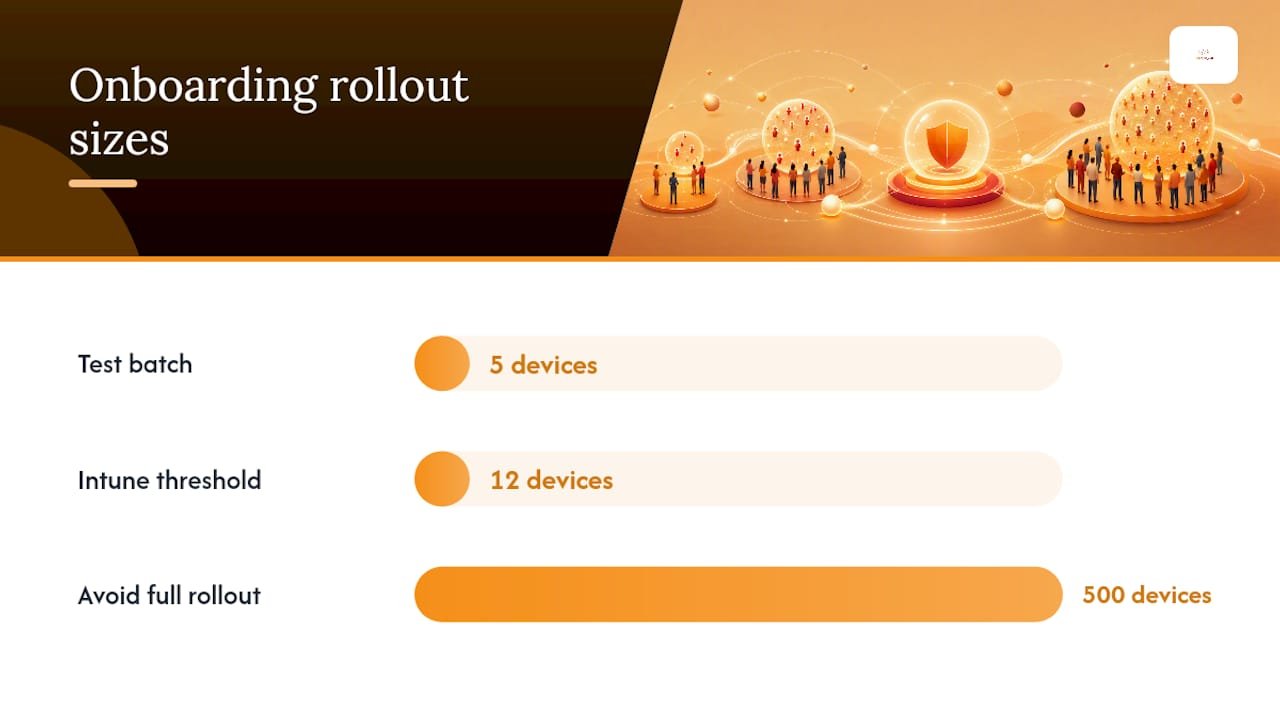
- Intune: the preferred method once you’re past a dozen devices, because it centralizes onboarding and lets you push attack surface reduction rules and compliance policies from one console alongside enrollment.
- Mobile devices: onboarded through the Microsoft Defender app, distributed via Intune or manually installed, giving phones and tablets the same threat visibility as laptops.
- Servers: need the add-on license mentioned earlier, plus a different onboarding package. Older Windows Server versions use an installation package with a separate onboarding script, and Linux servers often lean on tools like Ansible, Chef, or Puppet for deployment.
Before onboarding anything, make sure devices are current on security patches. Microsoft flags outdated patch levels as a common cause of onboarding failures.
Pro Tip: Run your first onboarding batch on five test devices, not five hundred. Confirming the pipeline works before a full rollout saves you from troubleshooting fifty broken agents at once.
Which Security Policies Should You Enable First?
Default policies get you protection on day one, but a handful of settings deserve deliberate attention rather than a rubber stamp.
- Attack surface reduction (ASR) rules: start with rules in audit mode, watch the reporting for a week, then move the highest-confidence rules to block mode. Testing in audit first avoids breaking line-of-business apps.
- BitLocker: enable it through Intune’s disk encryption policy and verify recovery keys are landing in Microsoft Entra ID, not just sitting on the local machine.
- EDR and automated investigation: these run automatically once devices onboard, and you’ll see alert triage and remediation actions appear directly in the Defender portal’s incident queue.
- Policy location split: ASR rules and compliance settings usually live in Intune, while alert tuning, investigation review, and threat analytics stay inside the Defender portal itself.
Some teams outgrow the wizard’s defaults fast. Microsoft notes that advanced Conditional Access controls require Microsoft Entra ID P1, which explains why more mature environments layer custom policies on top of Defender for Business rather than relying on the setup wizard alone.
How Does Defender for Business Fit MSP and Multi-Tenant Environments?
If you manage more than one tenant, monitoring alerts one dashboard at a time is not sustainable past three or four clients. Microsoft built Microsoft 365 Lighthouse specifically to give MSPs a single-pane view of incidents across every tenant, instead of logging into each Defender portal separately.
A few integration points matter here:
- Lighthouse pulls Defender alerts into one view, which cuts the daily login cycle dramatically for teams managing multiple clients.
- RMM and PSA platforms can ingest Defender alerts and turn them into tickets automatically, keeping incident response inside your existing workflow rather than a separate console. Total Cyber Solutions’ managed service provider model relies on exactly this kind of layered monitoring.
- Once a client tenant approaches the 300-user ceiling, that’s the trigger to start planning a migration to enterprise Defender plans, since Defender for Business simply isn’t licensed for anything larger.
What Should You Check in the First 30 to 90 Days?
Provisioning and onboarding are the easy part. The next three months determine whether the deployment actually holds up.
- Run a detection test within the first week, confirming that a test file or phishing simulation triggers an alert in the Defender portal.
- Review the security recommendations tab and remediate anything flagged high risk, starting with unpatched software and weak configurations.
- Set a fixed reporting cadence, weekly for smaller teams, so alerts don’t pile up unreviewed.
- Assign an escalation owner by name, not by team, so a real incident has a real first responder.
- Establish patch windows tied to your ASR and BitLocker policies so updates don’t silently break enforcement.
Pro Tip: Calendar your first policy review for 30 days out, not “sometime soon.” Defaults that looked fine on day one often need tightening once you see real alert volume.
How Total Cyber Solutions Approaches Defender for Business for SMBs
Self-deploying Defender for Business works fine if you have an admin who can dedicate real hours to tuning ASR rules, chasing onboarding failures, and reviewing alerts weekly. Most SMBs don’t have that person to spare.
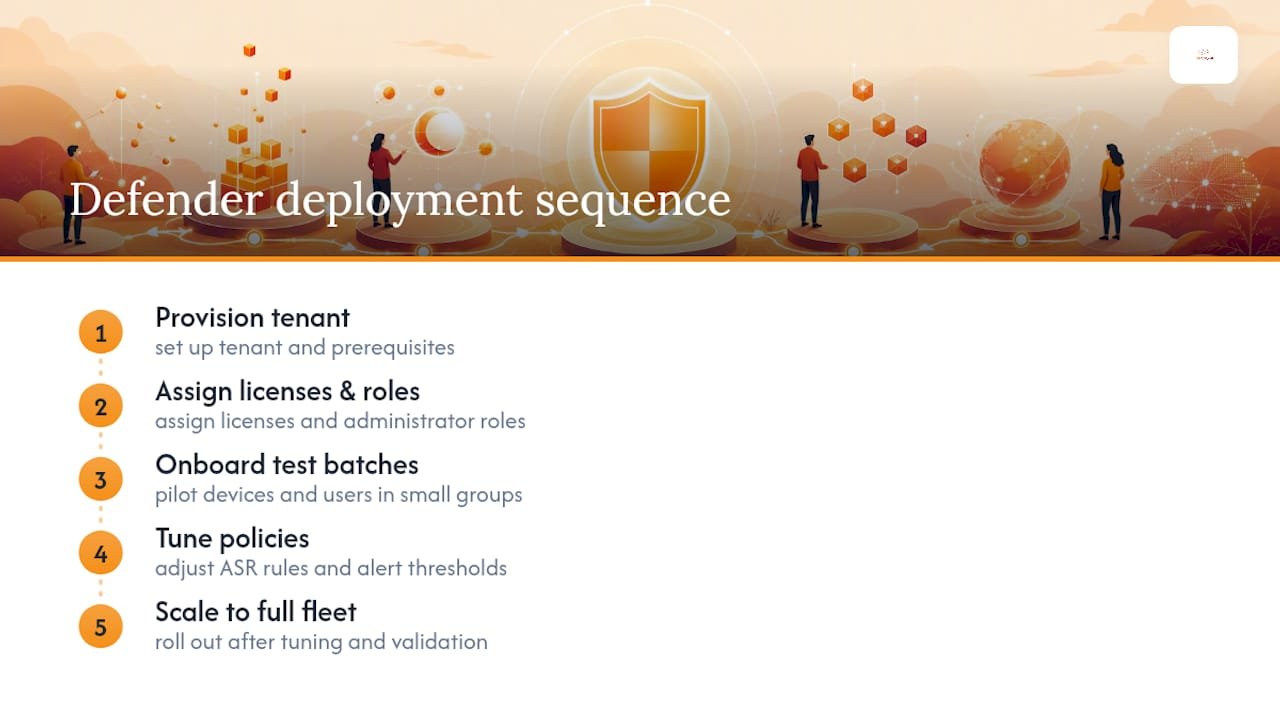
Deployments typically follow this sequence: provision, assign licenses and roles, onboard in test batches, then tune policies before scaling to the full fleet. What changes with managed security services is who’s watching the alert queue at 2 a.m. and who owns remediation when something slips past the defaults. That ongoing tuning is where most self-deployed setups quietly drift out of date.
— Alden
Get Defender for Business Running Without the Trial and Error
Managed service providers can handle the full deployment cycle, including provisioning, licensing, onboarding, and policy tuning, so your team isn’t learning ASR rule testing on production machines.

Instead of spending a week troubleshooting a Group Policy rollout or figuring out why three devices won’t onboard, you get a team that’s already run this playbook across dozens of tenants. Total Cyber Solutions pairs managed cybersecurity services with the same provisioning, onboarding, and tuning sequence outlined above, plus ongoing monitoring once devices are live. If your team also needs a broader IT budget framework before committing to a plan, resources like this small business IT budgeting guide can help frame the decision. When you’re ready to hand off the deployment, fill out the MSP contact form to get help scoping your Defender for Business rollout from provisioning through day-90 monitoring.
Essential Microsoft Docs and Portals to Bookmark
- Defender portal
- Intune admin center
- Microsoft 365 admin center
- Onboard devices guide