

Yes, SharePoint supports external sharing, with settings at both the organization and site level. You control it from the SharePoint admin center or PowerShell, and the choices you make there decide who outside your company can see, edit, or forward your files. One thing can’t wait: the Microsoft Entra B2B guest migration is coming, and you need to run your guest reports now, before access gets cut off for people who still need it.
TL;DR:
- External sharing settings are governed by both organization-wide and site-specific policies, with the stricter rule taking precedence.
- Using “Anyone” links is the riskiest option and should be restricted, especially for sensitive or regulated data, with expiration and reauthentication enforced.
- The upcoming Entra B2B migration will require running guest reports and pre-provisioning Entra guest accounts to prevent access loss starting in July 2026.
- Disabling organization-level sharing instantly overrides site settings and invalidates existing links, making prior audits essential before changing policies.
- Regular review of audit logs focusing on external sharing events helps locate and revoke unnecessary or risky guest access efficiently.
Table of Contents
- How external sharing actually works: settings, precedence, and link types
- How to enable or change external sharing across your tenant
- Security best practices and governance controls
- Monitoring and auditing external sharing activity
- Entra B2B integration and the 2026 migration
- Balancing security with productivity
- How Total Cyber Solutions helps with secure sharing and migration
- Authoritative sources worth bookmarking
- FAQ
How external sharing actually works: settings, precedence, and link types
Think of external sharing as two dials, not one. There’s an organization-level setting that acts like a ceiling, and a site-level setting underneath it. Whichever one is stricter wins. If your organization allows sharing with “Anyone,” but a specific site is locked to “Only people in your organization,” that site stays locked. OneDrive can never be more permissive than SharePoint, so tightening SharePoint automatically tightens OneDrive too.
There are four sharing levels you’ll choose from at either tier:
- Anyone: creates anonymous links that need no sign-in, the loosest and riskiest option.
- New and existing guests: lets people sign in or verify with a one-time code, then keeps them as guests for future access.
- Existing guests: only people already in your directory as guests can get in, no new invitations.
- Only people in your organization: shuts the door entirely on external access.
Defaults vary by workload. A brand-new team site connected to a Microsoft 365 group often inherits looser sharing than a locked-down communication site. And here’s a detail that trips up a lot of admins: when you disable sharing at the organization level, every site-level sharing setting is instantly overridden, and existing external links stop working. Turn it back on later, and those old settings and links can come back to life, sometimes re-exposing content nobody meant to reopen. That’s a reason to audit before you flip switches, not just after.
How to enable or change external sharing across your tenant
Changing sharing settings is quick. Getting it right takes a little more care. Here’s the sequence that works:
- Open the SharePoint admin center and go to Policies > Sharing.
- Set your organization-level slider to the option that matches your risk tolerance, and note that this becomes the ceiling for every site.
- Open the specific site’s sharing settings if it needs a tighter rule than the tenant default.
- Set the default link type for that site (Specific people, Existing guests, or a broader option) so users don’t accidentally pick the loosest one.
- Add domain restrictions if you want to allow or block sharing with specific companies.
- Set guest link expiration and reauthentication intervals so old invitations don’t linger indefinitely.
If you manage sharing at scale, PowerShell is faster than clicking through the admin center site by site. Get-SPOTenant shows your current tenant configuration, and Set-SPOTenant lets you script domain allow or block lists, which can include up to 5,000 domains, along with guest expiration policies. That’s especially useful if you’re standardizing settings across dozens of sites at once.
Pro Tip: Before you change the organization-level setting, export a list of every site currently using a looser policy than the one you’re about to set, so you know exactly what will break.
Security best practices and governance controls
The safest default is “Specific people” links paired with Microsoft Entra multifactor authentication and conditional access, especially for anything touching regulated data under frameworks like NIST or HIPAA. Anonymous “Anyone” links should be the exception, not the norm.
A few controls make the biggest difference:
- Disable Anyone links where you can, and where you can’t, force expiration dates so they don’t outlive the project.
- Avoid granting edit rights on Anyone links; view-only limits the damage if a link gets forwarded somewhere it shouldn’t.
- Restrict high-risk sites to specific security groups instead of leaving them open to broad external sharing.
- Use domain allow or block lists to keep sharing confined to known, trusted partner organizations.
Best practice guidance recommends preferring Specific people links over Anyone links whenever compliance or auditability matters, since anonymous access leaves no reliable trail of who actually opened a file. Pair that with regular access reviews and a habit of training site owners on what each sharing level actually does, because most oversharing happens by accident, not by malice.
Monitoring and auditing external sharing activity
You can’t secure what you can’t see, and sharing audit logs are how you see it. The events that matter most are SharingInvitationCreated, SharingInvitationAccepted, AnonymousLinkCreated, and AddedToSecureLink, each marking a different moment when content left your organization’s tight control.
A practical cleanup workflow looks like this:
- Export the audit log covering sharing-related events for the period you’re reviewing.
- Expand the AuditData JSON field, which is where the real detail lives, using Power Query or a similar tool.
- Filter for TargetUserOrGroupType:Guest to isolate activity involving external recipients rather than internal staff.
- Cross-check flagged sites against your list of confidential or regulated content.
- Revoke or downgrade any sharing link that no longer serves an active business purpose.
For large-scale cleanups, site-level external sharing reports and Purview eDiscovery searches help you find everything at once instead of site by site. The short version: discover what’s shared, review whether it should be, then revoke what shouldn’t.
Entra B2B integration and the 2026 migration
Microsoft is rolling SharePoint and OneDrive guest access into Microsoft Entra B2B, which means every guest becomes subject to Entra policies like conditional access and MFA. Once your tenant migrates, the integration can’t be turned off.
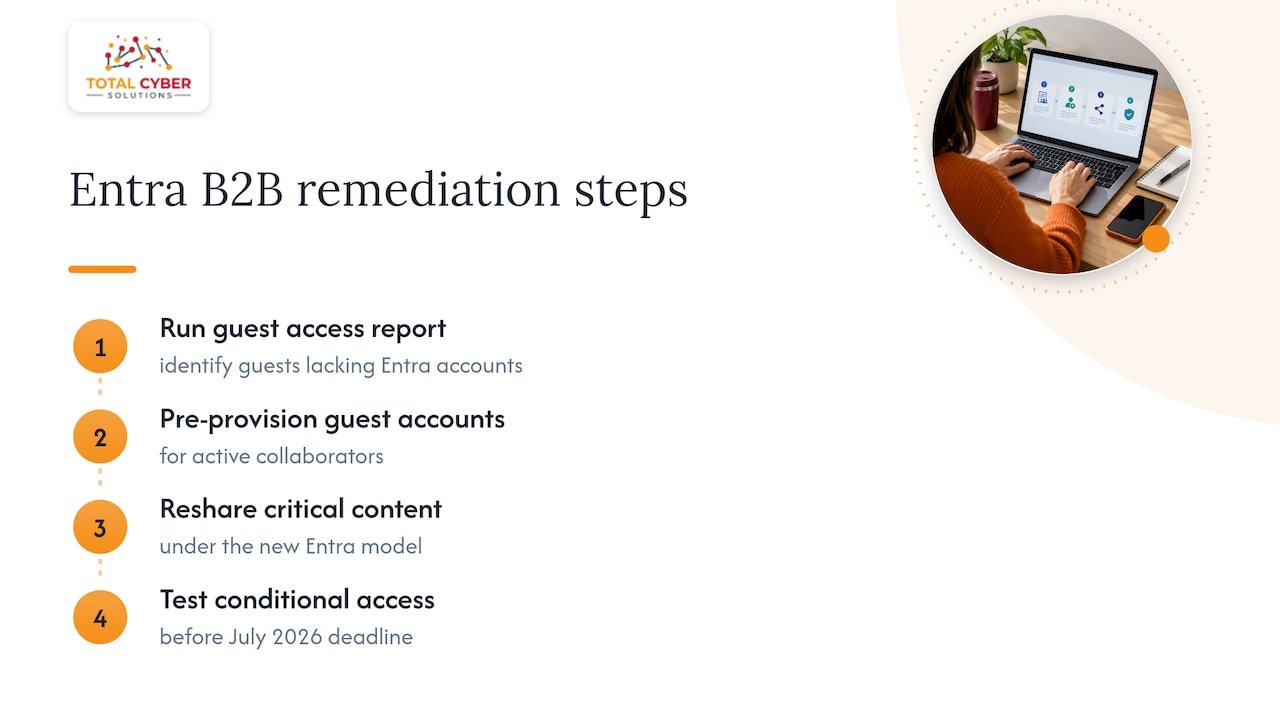
The part that should move you to act now: guests without a proper Entra guest account risk losing access starting in July 2026 unless you remediate first. Run a guest access report today, pre-provision Entra guest accounts for your active collaborators, reshare anything critical under the new model, and test conditional access before the deadline arrives.
Pro Tip: Don’t wait for the migration notice to hit your tenant. Pre-provisioning guest accounts now avoids a scramble later when partners suddenly can’t open shared folders.
Balancing security with productivity
Default to “Specific people” links and build a simple exception process for teams that need broader collaboration, rather than loosening the default for everyone. A quarterly access review catches drift before it becomes a real exposure. The tradeoff is real, tighter controls mean a little more friction, but that friction is cheaper than a breach.
— Alden
How Total Cyber Solutions helps with secure sharing and migration
Total Cyber Solutions works with small and mid-sized businesses on exactly this kind of Microsoft 365 governance work.

- Managed Microsoft 365 security and compliance configuration, including sharing policy design.
- Guest-account planning and Entra B2B migration readiness ahead of the 2026 deadline.
- Audit automation and periodic access reviews built into Managed Cybersecurity Services.
- Policy Compliance consulting for organizations mapping sharing controls to NIST or HIPAA requirements.
If your team needs a second set of eyes on external sharing settings or the Entra B2B transition, request a discovery call through our MSP form and we’ll walk through your current setup together.
Authoritative sources worth bookmarking
Microsoft’s external sharing overview covers configuration steps, while its audit log guidance explains event tracking, and its Entra B2B FAQ covers the migration timeline. For related governance reading, see Microsoft 365 email security hardening or a partner’s take on confidentiality controls for regulated data.
FAQ
Can SharePoint be shared with external users?
Yes. SharePoint supports sharing with external users through guest links and invitations, controlled by organization-level and site-level settings that determine how open or restricted that access is.
What are the best practices for external sharing in SharePoint?
Prefer Specific people links over Anyone links, set expiration dates on guest access, and pair sharing with multifactor authentication for anything sensitive. Restrict high-risk sites to security groups and review access on a regular schedule.
How do I enable external sharing in SharePoint Online?
Go to the SharePoint admin center, open Policies then Sharing, and set your organization-level option, then adjust individual site settings as needed. Larger environments can script the same changes with PowerShell commands like Get-SPOTenant and Set-SPOTenant.
What happens if external sharing is disabled?
Disabling sharing at the organization level immediately overrides every site-level setting, and existing external links stop working right away. Re-enabling it later can restore those old links, so an audit before re-enabling helps avoid reopening access you meant to leave closed.