

A Teams data retention policy, built through Microsoft Purview, lets you retain, delete, or retain-then-delete chats, channel messages, and call logs across your organization. Meeting recordings and transcripts follow a separate expiration setting in the Teams admin center, though Purview policies can override that setting for compliance. You choose the action, the data type, and the scope.
TL;DR:
- Chats live in users’ Exchange mailboxes, channel messages in group mailboxes and SharePoint, while shared files need separate OneDrive or SharePoint coverage.
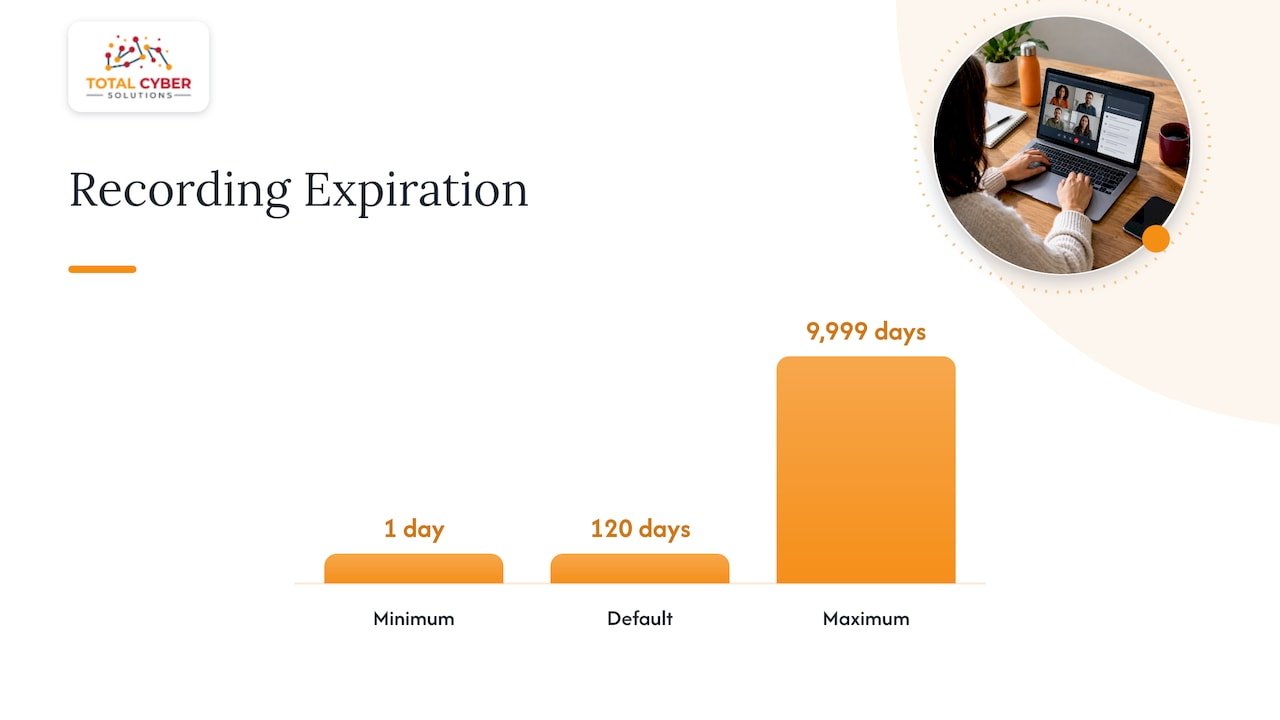
- Recordings and transcripts expire after 120 days by default; for legal retention beyond that, use Purview, which overrides Teams expiration and supports eDiscovery.
- Expired content may remain visible for one to seven days while deletion finishes, and active eDiscovery holds or longer policies override shorter deletion schedules.
- Pilot a delete only policy on a small, noncritical team for at least two weeks, checking both Teams visibility and eDiscovery results before broad rollout.
Table of Contents
- What’s included: which Teams data types and storage locations are covered
- How retention works for Teams: technical flows and timing
- Meeting recordings and transcripts: the 120-day default and when Purview takes over
- Create and manage retention policies for Teams
- When to use retention policies vs. meeting expiration or retention labels
- End-user experience and troubleshooting checklist for admins
- Practical policy checklist and how we support Teams retention governance
- A compliance-first view on Teams retention priorities
- Let us help you build a Teams retention policy that holds up
- FAQ
- Sources
What’s included: which Teams data types and storage locations are covered
Before you build anything, you need to know where each piece of Teams data actually lives. Retention policies work at the container level, so matching the right location to the right data type is the whole game.
- Teams chats (1:1, group, and meeting chats) sit as hidden copies in each user’s Exchange mailbox; you configure them under the “Teams chats” location.
- Teams channel messages, both standard and shared channels, live in group mailboxes and SharePoint; you manage them under “Teams channel messages.” After the private channel migration, private channel messages fall under this same location too.
- Files shared in chats land in the sender’s OneDrive, while channel files sit in the team’s SharePoint site, which often means you need separate SharePoint or OneDrive retention policies to cover them.
- Teams call logs (CDRs) now have their own dedicated retention location, a change from how call records were handled previously.
- Meeting recordings and transcripts are stored in the organizer’s OneDrive or the channel’s SharePoint site, with expiration managed in the Teams admin center, subject to Purview when compliance rules apply.
Treat this as your map. Every policy decision you make later traces back to one of these five locations.
How retention works for Teams: technical flows and timing
Once you pick a location, you pick an action. Each one behaves differently once content hits its retention date.
- Retain-only keeps content in place, preventing deletion even if a user tries to remove it, for as long as the policy specifies.
- Delete-only removes content automatically once it ages past the window you set, with no preservation step first.
- Retain-then-delete preserves content for the retention period, then deletes it automatically once that period ends.
Here’s the part that trips up a lot of admins: deletion isn’t instant. Content moves from its primary storage into a hidden mailbox copy, then into a holding area called SubstrateHolds once it expires, and a timer job finishes the permanent deletion. That timer job typically runs within 1 to 7 days, which means a user might still see a message or file for up to a week after its official expiration date. That’s not a bug. It’s processing lag, and it’s worth explaining to your help desk before the tickets start.
Edited or deleted messages work similarly. When a user edits or deletes a Teams message, the original version is often preserved in a hidden folder for the duration of the retention period, which keeps it available for eDiscovery even though the user thinks it’s gone.
When more than one policy or hold applies to the same content, the longest retention period wins, and any active eDiscovery hold or Purview policy takes precedence over a shorter deletion schedule. One more practical check: confirm your users carry the Purview and Exchange licensing required for these compliance features to function as expected. A policy configured correctly on paper does nothing if the underlying license isn’t assigned.
Meeting recordings and transcripts: the 120-day default and when Purview takes over
Meeting recordings and transcripts don’t follow the same Purview location model by default. Instead, they expire based on a setting in the Teams admin center.
- The default expiration for recordings and transcripts is 120 days, counted from the date the recording is created.
- Admins can change this under Teams admin center > Meetings > Meeting policies, setting any value from 1 to 9,999 days, or using PowerShell to set it to -1 so recordings never expire automatically.
- Where the recording is stored, either the organizer’s OneDrive or a channel’s SharePoint site, determines the recovery path and how long it sits in the recycle bin before it’s gone for good.
- If a recording moves out of its original OneDrive or SharePoint location, the Teams expiration setting no longer applies, and governance shifts entirely to whatever retention policy covers the new location.
Purview retention policies take precedence over the Teams expiration setting whenever compliance requires longer preservation. If your organization needs recordings kept past 120 days for legal or regulatory reasons, Purview holds them for eDiscovery regardless of what the meeting policy says.
Pro Tip: If you have any compliance requirement longer than 120 days, turn off automatic expiration in the meeting policy and let a Purview retention policy govern the recording instead.
Create and manage retention policies for Teams
Building the policy itself comes down to three decisions: scope type, location, and inclusion rules.
- Pick static scopes when you want to name specific teams or users directly, or adaptive scopes when you’ve already built them elsewhere in Purview; adaptive scopes limit which locations you can select, so if you haven’t created one yet, static is the faster path to a working policy.
- Select the right location for the job: choose “Teams channel messages” for standard and shared channels, “Teams chats” for 1:1 and group conversations, and the dedicated call logs location for CDRs. Remember that private channel messages only appear under the channel messages location after the migration completes.
- Use include and exclude lists to refine coverage. By default, a policy applies to all users or teams unless you narrow it, so double check scope before publishing anything organization wide.
One wrinkle worth flagging: creating a policy for Teams call logs currently requires the New-AppRetentionCompliancePolicy cmdlet rather than the standard policy wizard, since call logs are a newer, separately supported location.
Before rolling anything out broadly, run a pilot. A practical approach is applying a delete-only policy to one small, non-critical team and watching both the Teams client and eDiscovery search results for at least two weeks. That window gives you enough time to confirm the processing delays behave as expected and that nothing unexpected disappears for end users.
When to use retention policies vs. meeting expiration or retention labels
Three tools, three jobs. Mixing them up is where most retention headaches start.
- Teams meeting expiration is built for storage optimization. Use it when your goal is simply keeping OneDrive and SharePoint from filling up with recordings nobody needs past a few months.
- Purview retention policies are built for legal and regulatory retention, including long-term requirements such as a seven-year audit trail and continuity for eDiscovery. If a regulator or legal team is asking for data, this is the tool doing the preserving.
- Retention labels operate at the item level and apply to SharePoint and OneDrive files, not chat messages. If you’re trying to govern Teams conversations specifically, a container-level Purview policy is the right call, not a label.
- When meeting files live in OneDrive or SharePoint, pair your Teams retention policy with a matching SharePoint or OneDrive policy so the recording and the conversation around it stay aligned on the same timeline.
End-user experience and troubleshooting checklist for admins
Your help desk will get tickets about missing messages. Knowing what’s normal saves everyone time.
- Check policy scope and dates first. Confirm the user or team actually falls under the policy you think applies, and that the expiration date has genuinely passed.
- Look for edits or deletions. A message a user edited or deleted might still exist in a hidden folder under retention, even though it’s invisible in the regular Teams interface.
- Review holds and eDiscovery status. An active legal hold or eDiscovery case can override a shorter retention window entirely.
- Give it the processing window. Allow the standard one to seven day timer job to finish before assuming something went wrong.
- Check the Recycle Bin for recordings. Expired meeting recordings in OneDrive or SharePoint typically sit in the recycle bin for a limited recovery period before permanent deletion.
Pro Tip: Give your help desk a short script explaining the one to seven day processing window; it cuts down on repeat tickets about messages that “disappeared” right on schedule.
Practical policy checklist and how we support Teams retention governance
Here’s the shortlist we walk clients through before a policy goes live:
- Map every Teams data type to its exact retention location, chats, channel messages, call logs, and recordings.
- Define a retention duration per data type based on your actual compliance obligations, not a generic default.
- Configure scopes carefully and check for overlapping policies before publishing.
- Validate eDiscovery search results against what you expect the policy to preserve.
- Document the governance decisions and who approved them, in plain language your team can reference later.
Through our policy compliance services, we help organizations configure Microsoft 365 retention settings, run managed monitoring, and conduct periodic audits to confirm policies are doing what they’re supposed to. If you’d rather have a second set of eyes on your configuration, request an MSP discovery call and we’ll walk through it with you.
A compliance-first view on Teams retention priorities
If you only remember one thing, remember this: get your compliance requirements settled first, then layer storage management on top, not the other way around. Teams expiration settings are great for keeping storage lean, but they shouldn’t be your only line of defense if a regulator or legal team ever comes asking.
Test every policy on a small group before it touches the whole organization. Document what you changed and why. And tell your end users what’s happening to their chats and recordings before they notice on their own, it genuinely cuts down on support tickets.
— Alden
Let us help you build a Teams retention policy that holds up
Getting retention right across chats, channels, call logs, and recordings takes more than flipping one setting. We handle that mapping work directly through Managed IT Services, Policy Compliance consulting, and Managed Cybersecurity Services built around Microsoft 365 environments.

- We map your Teams data locations and match them to retention requirements specific to your industry.
- We configure static and adaptive scopes correctly the first time, so nothing slips through on day one.
- We monitor policy performance and run periodic audits to catch drift before it becomes a compliance gap.
If chat archiving decisions are part of your retention planning, it’s worth knowing when a conversation belongs in chat versus email in the first place, since that choice affects which retention location governs it later. Ready to get your policy audited or built from scratch? Request your MSP discovery call and we’ll walk through your environment together.
FAQ
What is the seven year retention policy?
There’s no single universal “seven year” rule in Microsoft Teams; it’s a retention duration some organizations choose to meet their own regulatory or audit requirements, configured as a custom Purview retention policy. The duration itself comes from your industry’s compliance obligations, not a default Microsoft setting.
Can my boss see my deleted Teams messages?
If a retention policy or legal hold applies, your original message content may be preserved in a hidden mailbox folder even after you edit or delete it, and that content stays available for eDiscovery. Whether someone can actually access it depends on your organization’s eDiscovery and compliance permissions, not on everyday visibility in the Teams app.
Do old chats get deleted in Teams?
Only if a retention policy is configured to delete them; without a delete-only or retain-then-delete policy in place, Teams chats don’t expire automatically. When a policy’s retention period does trigger deletion, the content moves through hidden processing folders before permanent removal, which can take a few days after the expiration date.
How do I check my SharePoint retention policy?
You can review active retention policies and their assigned locations in the Microsoft Purview compliance portal under the retention policies section, where each policy lists its scope and settings. If a Teams channel’s files live in SharePoint, that site needs its own retention policy, separate from the Teams channel messages policy covering the conversation itself.