

To set up DMARC, you first make sure SPF and DKIM work for every service that sends email as your domain. Then you publish a DMARC record in DNS with a monitoring-only policy (p=none), read the reports for a few weeks, fix what they show, and step up to quarantine and finally reject. That sequence is how you stop attackers from sending email that looks like it came from you.
None of it is hard. But the order matters, and skipping ahead is how businesses end up with invoices bouncing. Here’s the full path, written for the owner or office manager who has about 20 minutes between meetings.
TL;DR
- DMARC tells receiving mail servers what to do with messages that claim to be from your domain but fail SPF or DKIM checks.
- Set up SPF and DKIM first, and let them run at least 48 hours before you publish DMARC.
- Start with
p=none, collect reports for at least a week or two, then move top=quarantineandp=rejectgradually. - Inventory every third-party sender (payroll, CRM, marketing tools) before enforcing, or legitimate mail gets blocked.
- DMARC is not set and forget. Someone has to read the reports.
Table of Contents
- What DMARC does, in plain words
- SPF, DKIM and DMARC: how they fit together
- Before you touch DNS: four things to gather
- Step 1: Get SPF right
- Step 2: Turn on DKIM
- Step 3: Wait, then publish DMARC at p=none
- DMARC setup for Microsoft 365
- Step 4: Read the reports
- Step 5: Move to quarantine, then reject
- Mistakes we see over and over
- Our perspective: DMARC is a project, not a record
- What DMARC won’t stop
- Want it handled for you?
- FAQ
- Sources
What DMARC does, in plain words
Picture a stranger sending a message to your customer that says it’s from billing@yourcompany.com. Without DMARC, nothing stops the customer’s mail server from delivering it. With DMARC, the server checks whether the message passed SPF or DKIM in a way that matches the domain in the From line. If it didn’t, your policy says what happens next.
Google’s documentation describes the three possible actions: reject, quarantine, or deliver the message anyway. You can also ask for reports back.
That’s the whole idea. Your domain publishes the rules. Everyone else’s servers follow them.
It matters because email is still the front door. CISA’s guidance says SPF, DKIM, and DMARC should be implemented together to protect against phishing and domain spoofing, and it names reject as the ultimate goal for second-level domains. If you’ve read our piece on business email compromise, you know why: a spoofed message from “the boss” or “the vendor” is the oldest trick going.
SPF, DKIM and DMARC: how they fit together
People search “SPF vs DMARC” as if they compete. They don’t. They’re three layers, and DMARC sits on top.
| Layer | What it checks | Where it lives | What it can’t do alone |
|---|---|---|---|
| SPF | Is the sending server on your approved list? | A TXT record on your domain | Survives poorly when mail is forwarded; says nothing about what to do on failure |
| DKIM | Does the message carry a valid digital signature from your domain? | A key published in DNS, signing done by the mail service | Doesn’t tell receivers what to do with unsigned mail |
| DMARC | Did SPF or DKIM pass and match the visible From domain? What should happen if not? | A TXT record at _dmarc.yourdomain.com |
Needs SPF or DKIM working first |
The word that trips people up is alignment. Microsoft explains that DMARC requires either SPF or DKIM to pass and the authenticated domain to line up with the From address. A message can pass SPF for some other domain and still fail DMARC.
So: SPF and DKIM prove who sent it. DMARC connects that proof to the address your customer actually sees, and gives you a say in the outcome.
Before you touch DNS: four things to gather
Ten minutes of prep saves you a week of cleanup.
- Access to your DNS. That’s usually your domain registrar or a DNS host. If you don’t know who holds it, find out now. This is the most common stall.
- A list of every system that sends email as your domain. Your main mail platform, yes. But also the payroll provider, the CRM, the newsletter tool, the invoicing app, the help desk, the website contact form, the scanner that emails PDFs.
- A dedicated mailbox or group for reports. Google advises against using a personal inbox. DMARC reports are machine-readable XML files and you can get hundreds a day. Create something like
dmarc-reports@yourdomain.comso your main inbox stays usable. - A list of all your domains. Including old ones, parked ones, and subdomains. Attackers love the domain you forgot you owned. Microsoft’s deployment guide says to configure SPF, DKIM, and DMARC for all custom domains, parked domains and subdomains included.
That sender list is the real work. Don’t rush it.
Step 1: Get SPF right
SPF is a single TXT record that lists the servers allowed to send for your domain. Your mail platform gives you the value to publish. Your other senders each give you an include entry to add.
Two rules keep you out of trouble:
- One SPF record per domain. Add new senders to the existing record. Don’t publish a second one.
- Include every legitimate sender. Microsoft’s security operations guidance notes that rejected or quarantined mail is often blamed on the recipient’s filter when the real cause is a sender that left legitimate IP addresses out of its SPF record or skipped DKIM signing. In other words, it’s on you to get your own house in order.
When SPF is published, send a test message to an outside address and look at the headers. You want to see a pass.
Step 2: Turn on DKIM
DKIM signs outgoing messages so the receiver can confirm nothing was altered and the mail really came through your authorized service. You publish a public key in DNS. Your mail platform keeps the private one.
Why bother when SPF exists? Forwarding. When a recipient’s server forwards your message, the sending IP changes and SPF often breaks. Microsoft’s troubleshooting documentation points out that in these cases DKIM is what keeps DMARC passing. No DKIM, and forwarded mail from your own staff to their personal inboxes can look fake.
Enable DKIM for each sending service, not just your main mailbox platform. Your newsletter tool and CRM usually have their own “authenticate your domain” screen. Use it.
Step 3: Wait, then publish DMARC at p=none
Google’s rollout guidance is blunt: set up DKIM and SPF at least 48 hours before you set up DMARC. Microsoft gives the same 48-hour window. Give it time.
Then create one TXT record:
- Host/name:
_dmarc - Type: TXT
- Value:
v=DMARC1; p=none; rua=mailto:dmarc-reports@yourdomain.com
That’s the starter record. p=none means “don’t block anything, just report.” The rua tag says where to send the daily summary reports. Microsoft’s DMARC configuration page covers the full record syntax if you want to add options later.
Save it. Your DNS provider may take a while to propagate, so don’t panic if a checker doesn’t see it right away.
The step-by-step in DNS terms
- Log in to the DNS host and choose to add a record.
- Select TXT as the record type.
- Enter
_dmarcas the host (some providers want the full_dmarc.yourdomain.com). - Paste the value above, with your own report address.
- Save, then check the record with any DNS lookup tool.
DMARC setup for Microsoft 365
If you run Microsoft 365 (Office 365 to many people), the logic is the same, with a few specifics.
- Your custom domain: Add SPF and DKIM through the Microsoft 365 and Defender admin portals, then publish the
_dmarcTXT record at your DNS host as above. Microsoft’s step-by-step article walks through each screen. - Your onmicrosoft.com domain: Microsoft treats this one differently. Its documentation includes a separate procedure for adding a DMARC record for
*.onmicrosoft.comdomains in the admin center, so don’t skip it. - Parked and unused domains: These need records too. Microsoft’s guide includes DMARC TXT records for parked domains, since a domain that never sends mail is exactly the one spoofers pick.
- Inbound mail: DMARC also affects how Microsoft 365 treats mail coming in. Check the inbound section of the same article before you decide how strict your own policy should be.
The order Microsoft recommends in its Defender for Office 365 deployment guide is SPF, then DKIM, then DMARC. Same as above. If you want the rest of the hardening checklist, we cover it in 10 practical steps to harden Microsoft 365 email security.
Step 4: Read the reports
Here’s where most small businesses stop. They publish p=none, feel done, and never look again. That’s a monitoring policy with nobody monitoring.
Google describes DMARC reports as a record of every server sending mail for your domain, and recommends regularly reviewing the daily reports. Companies routinely find forgotten legacy systems, former marketing platforms, and shadow IT sending on their behalf.
Raw XML is miserable to read. A DMARC analysis tool turns it into a table of senders and pass/fail counts. Or your IT provider can do it for you.
What to look for:
- Legitimate senders that fail. Fix these first. Usually a missing SPF include or a DKIM setup that was never finished.
- Senders you don’t recognize. Could be an old tool. Could be someone spoofing you. Find out which.
- Volume patterns. A sudden spike from an unfamiliar source is worth a call.
CISA’s email security guidance recommends valid SPF and DMARC records on all second-level domains, with a DMARC policy at minimum. Fixing what the reports reveal is how you get from that minimum to real protection.
Step 5: Move to quarantine, then reject
Google’s guidance says to run p=none for at least one week, then raise enforcement gradually. Its example: a small organization might start quarantine at 10% of traffic, while larger ones may start at 1%. You do that with the pct tag.
A sensible schedule looks like this:
| Phase | Policy | Typical goal |
|---|---|---|
| Weeks 1 to 2 (or longer) | p=none |
Find every sender, fix failures |
| Next | p=quarantine at a low percentage |
Failing mail goes to spam, you watch for complaints |
| Then | p=quarantine at 100% |
Confirm nothing legitimate is landing in junk |
| Final | p=reject |
Spoofed mail is refused outright |
Don’t go straight to reject. Google’s own advice is that doing so before you’ve found all the third-party senders will likely block legitimate business mail. Payroll notices vanishing is not a good Monday.
Is reject mandatory? For most small businesses, no law says so. But CISA names it as the ultimate goal, and a published policy at none doesn’t stop spoofing. It only shows you the spoofing.
Mistakes we see over and over
- Publishing DMARC before SPF and DKIM. Everything fails, and you can’t tell why.
- Forgetting a vendor. The HR platform or the accounting tool sends as you. Nobody told IT.
- Two SPF records. Merge them into one.
- No DKIM on third-party senders. Forwarding then breaks them.
- Ignoring the reports. CISA’s materials stress that DMARC needs ongoing monitoring. Misconfigured records can also mark real mail as spam, so validate before deploying and keep refining.
- Skipping subdomains and parked domains. Spoofers don’t care which domain you actually use.
Our perspective: DMARC is a project, not a record
When a small business asks us to “set up DMARC,” the DNS entry takes minutes. The work is everything around it: finding the systems nobody remembers, getting vendors to sign mail properly, and having a person who reads the reports next month and next year.
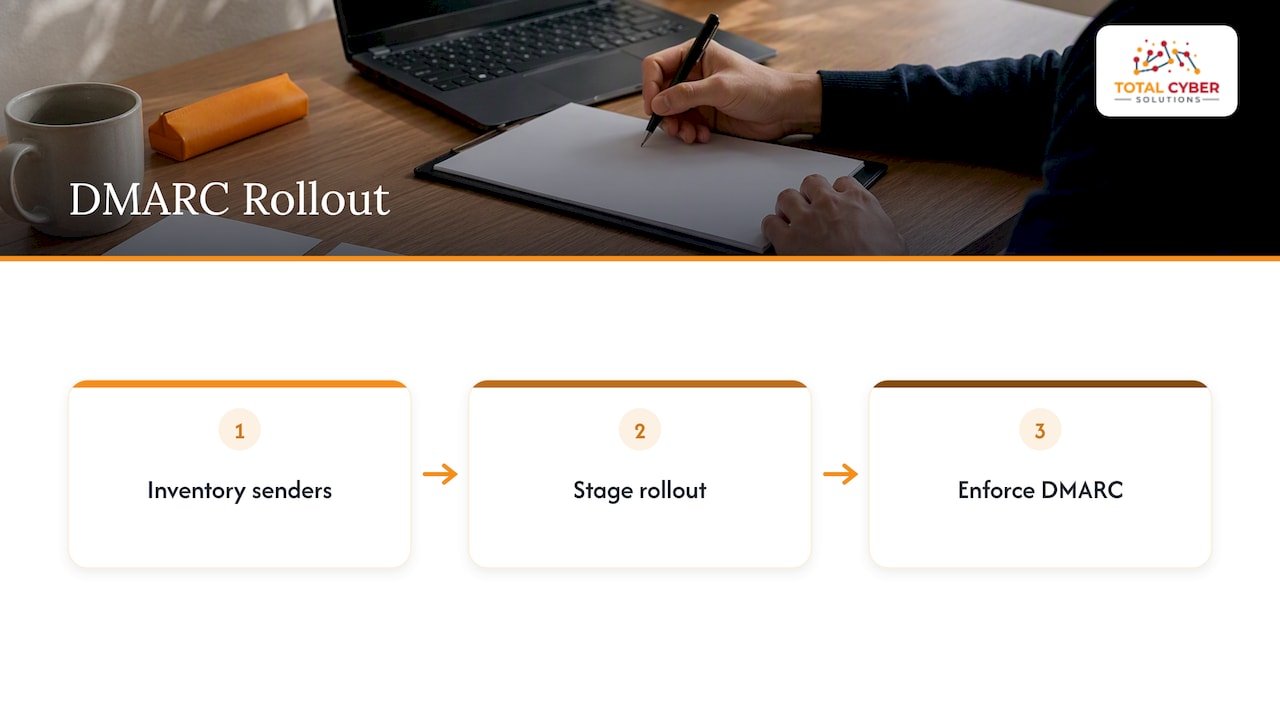
That’s why we treat email authentication as part of managed security rather than a one-off ticket. Our approach is to embed security into every managed service, with senior cybersecurity professionals involved rather than generalists alone. For DMARC that means we inventory senders, stage the rollout, and get you to enforcement without surprises.
We also think of it as a compliance topic. If you answer to frameworks like HIPAA, NIST, CJIS, or CMMC, being able to show you control who can send mail as your organization is a good story to tell an assessor. And it connects to training: even a perfect DMARC policy doesn’t stop a lookalike domain or a phishing link sent from a compromised account. Our phishing training blueprint covers that human layer.
— Alden
What DMARC won’t stop
Be honest about the limits. DMARC protects your exact domain from being spoofed. It does not:
- Stop a lookalike domain such as a swapped letter or an added word.
- Protect you from a real mailbox that’s been taken over. That’s where MFA and conditional access come in.
- Prevent people from clicking. See the phishing examples your employees see daily.
Think of it as one lock on the door. A good one, but not the only one.
Want it handled for you?
If your DNS is a mystery, your sender list is a guess, or nobody has time to read reports, we can run this for you. Our managed cybersecurity services include security monitoring and compliance support, and our managed IT services cover Microsoft 365 management with U.S.-based 24/7 support.
Ready to lock down your domain? Talk to our team.
FAQ
How do I stop email spoofing?
Publish SPF and DKIM for every service that sends as your domain, then add a DMARC record and move it to reject over several weeks. CISA recommends using all three together. Pair that with MFA and staff training, since DMARC only covers your exact domain.
Do I need to set up DMARC?
If anyone could send email pretending to be your business, yes. CISA’s guidance calls for valid SPF and DMARC records on organization domains. Even a p=none record gets you reports, though real protection starts at quarantine or reject.
How long does a DMARC rollout take?
Plan for several weeks, not an afternoon. Google suggests at least a week at p=none, after SPF and DKIM have been in place for 48 hours. Businesses with many third-party senders often need longer to clean up failures.
What happens if I jump straight to p=reject?
Any legitimate sender you haven’t authenticated gets blocked. That could be payroll, invoicing, or marketing mail. Start with monitoring and enforce in stages.
Can I use one inbox for DMARC reports?
You can, but you shouldn’t use your own. Reports are XML files that can arrive in the hundreds per day, so use a dedicated mailbox or group, or a reporting tool.
Sources
- CISA: SPF, DKIM, and DMARC countermeasure
- CISA Insights: Enhance Email and Web Security
- Google Workspace Help: Set up DMARC
- Google Workspace Help: Recommended DMARC rollout
- Google Workspace Help: About DMARC reports
- Microsoft Learn: Set up DMARC in Microsoft 365
- Microsoft Learn: Troubleshoot email authentication
- Microsoft Learn: SecOps guide for email authentication
- Microsoft Learn: Get started with Defender for Office 365