

The best SharePoint migrations are won before a single file moves. Clean up what you have, decide where each piece of content will live, map who can see what, test with a small group, then cut over on a day your team expects. Skip those steps and you get broken links, missing permissions and a help desk full of “where did my file go?”
This guide walks through the process for a small or mid-sized business moving files from a file server or shared drive into SharePoint Online. It follows Microsoft’s own migration guidance and adds what we see in the field.
TL;DR
- Inventory and clean up first. Moving clutter into SharePoint just gives you clutter in the cloud.
- Decide the target design before you copy anything: what goes to OneDrive, what goes to shared libraries, and who gets access.
- Scan for blocked file types, bad file names and overlong paths. Fix them at the source.
- Pilot with a small group, then migrate in batches and disable the old shares at cutover so nobody edits two copies.
- Plan for people: communication, training and help-desk support matter as much as the tool you pick.
Table of Contents
- Start with what you have
- Design the target before you move anything
- Prepare the files: the boring work that saves you
- Get permissions right
- Pick the tool that fits your starting point
- Batch, pilot, then cut over
- Protect your people’s workday
- What to check after the move
- Common problems and how to avoid them
- Our perspective
- When to bring in help
- FAQ
- Sources
Start with what you have
Most small businesses have a file server that grew by habit. Folders named “Old,” “Old 2” and “Final FINAL.” Files from people who left years ago. Nobody wants to touch it.
That is exactly where a migration starts. Microsoft’s file share migration guide tells you to assess the source environment first, including whether content is redundant, out of date or still relevant. Then you decide on the target design, how the source maps to the target, how much content to migrate, timing, and how you will tell users.
A simple way to do this:
- List every share, who owns it and roughly how big it is.
- Sort content into three buckets: keep and move, archive, delete.
- Ask each department head to sign off on their bucket. It takes a week, not a month, and it saves you from migrating years of dead weight.
Less data also means a faster migration and a smaller bill if you pay by the gigabyte for a tool or for a provider’s time.
Write down how people actually work
A file is not just a file. It is part of a routine. Someone in accounting opens last month’s folder, copies a template, saves it somewhere else, emails it to a client.
Microsoft’s business requirements guidance suggests documenting those collaboration journeys and turning them into pilot test cases. It also advises involving legal and compliance teams early and lining up stakeholder and product-champion support. Take that seriously. If you are in a regulated field, someone needs to confirm retention, access and audit requirements before the design is final, not after.
Design the target before you move anything
This is the step small teams skip, and it is the one that causes the most regret.
SharePoint is not a bigger shared drive. It works best when you think in terms of:
- OneDrive for an individual’s working files.
- Shared document libraries (often tied to a team or department) for files several people use.
- Permissions at the library or site level, not at every folder.
Don’t recreate a seven-level folder tree just because it exists today. Flatten it where you can. Use fewer, clearer top-level libraries. Decide who owns each one.
Here is a quick mapping exercise that works for most small companies:
| Source content | Likely destination | Why |
|---|---|---|
| Personal “My Documents” or home folders | OneDrive | One owner, private by default |
| Department shares (Finance, HR, Ops) | One shared library per department | Controlled access, shared ownership |
| Company-wide templates and policies | Read-only company library | Everyone reads, few edit |
| Old projects and closed jobs | Archive library or offline archive | Keeps active libraries fast and tidy |
| Client or project folders | Library per client group, or a team site | Easier to grant and remove access |
If your plan also touches identity, licensing or a bigger move into Microsoft 365, read our identity-first Microsoft 365 migration runbook before you set dates. Getting users and licenses right first is what makes the file move go smoothly.
Prepare the files: the boring work that saves you
SharePoint has rules that a file server does not. Files that break the rules fail to migrate or arrive in a mess.
Microsoft’s guide names the common problems: blocked file extensions, invalid characters in file or folder names, and paths that exceed SharePoint limits. It also says scanning-only assessment reports can expose these issues before you migrate anything. Run one.
Two limits worth knowing, from Microsoft’s SharePoint limits page: a single uploaded file can be up to 250 GB, and the full decoded path, including the file name, can’t exceed 400 characters. Deep folder trees with long names hit that second limit more often than you would think.
For file-share migrations specifically, Microsoft says the SharePoint Migration Tool handles files under 15 GB, along with folder structure, user-level permissions and metadata, subject to current SharePoint restrictions. Check the guide for the current numbers when you plan, since they change.
A pre-migration checklist
- Run a scan-only report and fix blocked extensions and invalid names.
- Shorten the worst folder paths. Rename, don’t just hope.
- Find files that are corrupted or that the migration account can’t read.
- Remove or archive duplicates and stale content.
- Decide how many file versions you really need to bring along.
- Pre-provision your Microsoft 365 users and confirm licenses.
- Make sure the migration account has permissions on the destination OneDrive locations.
That last pair matters. Microsoft’s guidance is to pre-provision users and give the migration account destination permissions before you start. Skipping it is a classic way to burn a Saturday.
Get permissions right
Permissions are where file server migrations quietly go wrong. Nothing errors out. Files just end up visible to the wrong people, or hidden from the right ones.
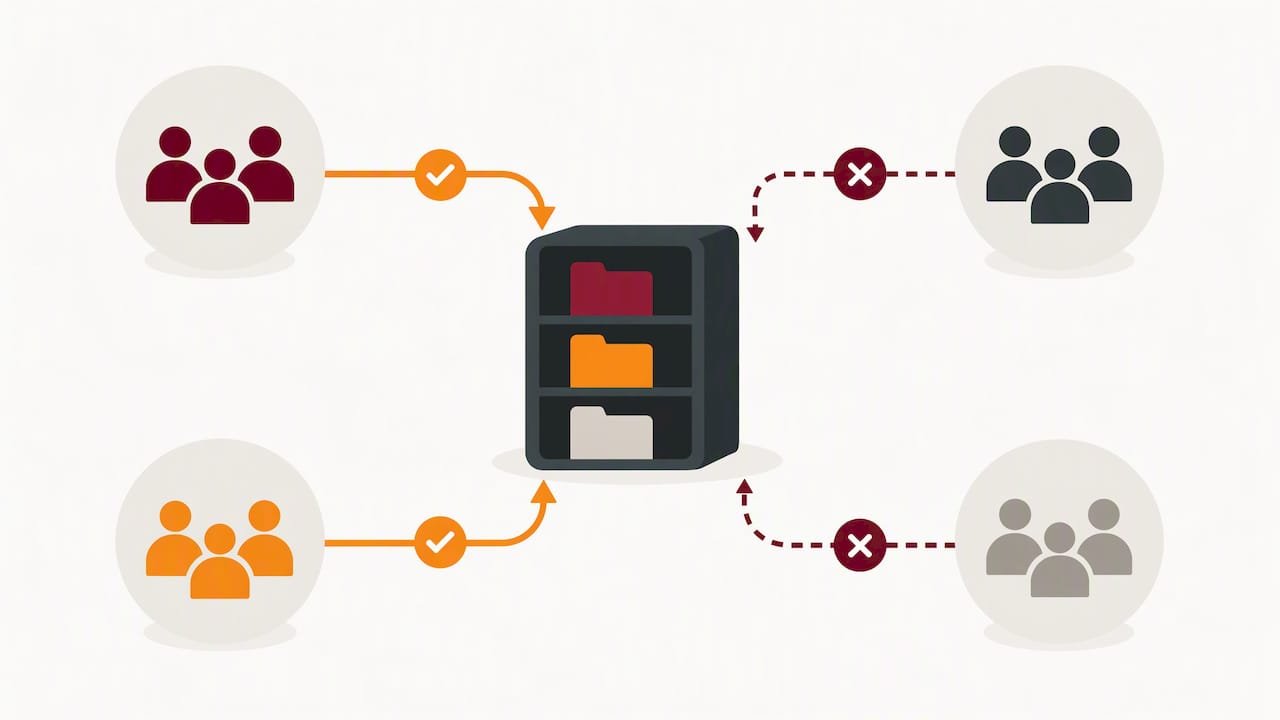
According to Microsoft’s migration guide, when a file share has both share and NTFS permissions, the most restrictive one determines final access. Advanced NTFS permissions are removed in the move. And explicit deny permissions may leave content accessible, which is the surprising one. Someone you meant to block could still get in.
So review your permission mapping on purpose:
- Export who has access to what today.
- Decide the groups you want in SharePoint (for example, Finance Editors, Finance Readers).
- Map old permissions to those groups, not to individuals.
- Test with a real user from each group.
- Look hard at anything sensitive: payroll, HR, legal, client data, anything under a compliance framework.
If you share with clients or vendors, settle external sharing rules now. We cover the admin side in our SharePoint external sharing guide. And if you handle regulated data, our post on NIST 800-171 controls shows what auditors look for.
Pick the tool that fits your starting point
For a file server, Microsoft points you to Migration Manager or the SharePoint Migration Tool (SPMT). Both are free from Microsoft. Migration Manager runs a scan whenever you select a migration, checking source access, destination write access and known file issues. That built-in check catches a lot.
For on-premises SharePoint content, Microsoft also documents PowerShell cmdlets for migration. One detail to plan around: jobs run through Azure and SharePoint on a timer-job queue, so they will not finish the second you submit them. Build that into your schedule.
How do you choose?
| Situation | Reasonable approach |
|---|---|
| A few shares, modest size, one admin comfortable with Microsoft 365 | Migration Manager or SPMT, run in-house |
| Many shares, complex permissions, regulated data | Use the Microsoft tools with an experienced partner planning and checking the work |
| On-premises SharePoint with custom content | PowerShell-based migration, planned with a specialist |
| Mixed environment, plus email and identity changes | Treat it as one Microsoft 365 project, not several small ones |
The tool is rarely the hard part. The decisions around it are.
Batch, pilot, then cut over
Don’t move everything in one go. Microsoft’s performance guidance says to scan and triage the source first, decide which content and versions you need, package content efficiently, and keep permissions and sharing settings within SharePoint limits.
On packaging, Microsoft’s performance guide recommends packages of at least 250 files, with transfer sizes of at least 100 MB and under 250 MB, as a throughput guideline. Lots of tiny files move slowly. Your tool may handle some of this for you, but know why a folder of 200,000 tiny documents crawls.

Run a pilot
Pick a small group that includes a skeptic. Let the pilot run through incremental background migration so you can check performance, your messages and user feedback before the real thing. Microsoft recommends exactly this approach.
What to test:
- Can users find their files within a minute?
- Do shortcuts, macros and linked spreadsheets still work?
- Do the right people have the right access, and nobody else?
- How long did the sync take on your actual internet connection?
- What questions did people ask? Those become your FAQ.
Plan the cutover day
Cutover is when you disable the old file shares and point everyone to SharePoint or OneDrive. Disable them. If you leave them open, people keep saving to the old place and you end up with two versions of the truth.
Microsoft’s guidance for this moment is simple: tell users what is happening and when, prepare help-desk support and training, and plan for possible downtime. A few practical touches:
- Pick a low-traffic window, like a weekend before a quiet week.
- Send one clear message a week ahead and one the day before.
- Make the old share read-only first, then remove it.
- Have someone on call Monday morning.
Protect your people’s workday
Migrations fail on adoption more than on technology. Your team is busy. They don’t want a new system. They want to open the file and get back to work.
Give them:
- A one-page “what changes for me” guide.
- A 20-minute walkthrough on OneDrive and shared libraries. Microsoft’s guidance explicitly recommends OneDrive training before cutover.
- A trained help desk, internal or outsourced, that knows the five most common questions.
- A named champion in each department.
Train people on security at the same time. A new place for files is a good moment to remind everyone how phishing links and shared-link prompts work. A fake “you’ve been sent a document” email lands very differently when it matches real SharePoint notifications. Our guide to hardening Microsoft 365 email security covers the filters that stop a lot of it.
What to check after the move
You are not done when the progress bar hits 100 percent. For the first few weeks, check the following:
- Completeness. Compare file counts and sizes against the source report. Spot-check key folders by hand.
- Access. Test with real accounts from each group. Confirm sensitive libraries are locked down.
- Sharing. Review who has external links and whether they should.
- Retention and backup. Confirm retention settings match your policy. If you use Teams, map where its data lives with our Teams data retention guide.
- Old shares. Keep a read-only copy for a defined period, then archive it and retire the server.
- Feedback. Survey the pilot group and one or two departments at 30 days. Fix what hurts.
Then take care of the recurring jobs: access reviews, license checks, and a plan for recovery. If you are thinking about the bigger picture, our 12-month information security roadmap helps you place this project in a longer plan.
Common problems and how to avoid them
| Problem | What causes it | Prevention |
|---|---|---|
| Files fail to migrate | Blocked extensions, invalid names, overlong paths | Scan first and fix at the source |
| Wrong people see files | Permission mismatch, explicit deny rules | Map permissions to groups and test with real users |
| Duplicate edits | Old shares left open after cutover | Disable source shares at cutover |
| Slow migration | Many tiny files, one job, limited bandwidth | Batch and package sensibly, run during off-hours |
| Angry users | No warning, no training | Communicate early, train, staff the help desk |
| Missing files | Corrupted or inaccessible documents | Scan for them and decide before cutover |
Notice how many of these are decisions and communication, not technology.
Our perspective
We see SharePoint migrations as a security project that happens to move files. The moment you move data, you decide who can touch it. That is a chance to fix years of loose access, or to carry the mess straight into the cloud.
Our approach is to put security into the plan from day one. A senior cybersecurity professional looks at permissions, external sharing and compliance needs while the design is still on paper, not after an auditor asks. If you work under frameworks like HIPAA, NIST, CJIS or CMMC, that matters even more, because where files live and who reaches them are audit questions.
We also think small businesses deserve plain answers. No jargon, no surprise scope. You should know what is moving, when, who is affected and what happens if something goes wrong.
And please test. A pilot with five people costs a few days. A bad cutover with fifty costs weeks of trust.
— Alden
When to bring in help
You can run a small migration in-house if you have a capable admin, a modest amount of data and no heavy compliance load. Bring in help when:
- You are under HIPAA, CJIS, CMMC or NIST requirements.
- Permissions are tangled and nobody knows who owns what.
- You have no one to run the help desk on cutover week.
- The file move is one piece of a larger Microsoft 365 or cloud change.
Our team handles Microsoft 365 and cloud work with security built in, backed by U.S.-based 24/7 support. If you want ongoing care after the move, see our managed IT services. For file storage and cloud design questions, our cloud services page is the place to start.
Ready to plan your SharePoint migration? Request a discovery call with our team and we will help you map the move, protect your data and keep your people working.
FAQ
How long does a SharePoint migration take?
It depends on how much data you have, how clean it is and how fast your connection is. Cleanup and planning often take longer than the copy itself. Migration jobs also run on a queue, so build in buffer time rather than expecting instant results.
What is the easiest way to move files to SharePoint?
For a file server, Microsoft’s free Migration Manager or the SharePoint Migration Tool are the usual starting points. Scan first, fix file-name and path problems, pre-provision your users, and pilot with a small group before moving everything.
Will my folder permissions carry over?
Mostly, but not perfectly. Microsoft notes that the most restrictive share or NTFS permission wins, advanced NTFS permissions are removed, and explicit deny rules may leave content accessible. Review the mapping and test with real accounts before cutover.
Should I migrate everything?
No. Archive or delete content that is redundant, out of date or no longer needed. Migrating less is faster, cheaper and leaves you with a cleaner environment to manage.
What happens to the old file server?
Disable the shares at cutover so nobody keeps editing old copies. Keep a read-only copy for a set period in case something was missed, then archive and retire it.
Sources
- Migrate file shares to SharePoint and OneDrive (Microsoft Learn)
- Identify business requirements for SharePoint and OneDrive (Microsoft Learn)
- Migration performance guide for SharePoint and OneDrive (Microsoft Learn)
- How Migration Manager works for file share migrations (Microsoft Learn)
- Use PowerShell cmdlets to migrate on-premises content (Microsoft Learn)
- SharePoint limits (Microsoft Learn)